
Call us 24/7uaedcs@163.com
Welcome to the official website of CNIACS Automation Technology Co., Ltd!
Call us 24/7uaedcs@163.com

YOKOGAWA AQ23011A/AQ23012A Modular

Product positioning and core applications

AQ23011A/AQ23012A is a modular framework device that requires the use of AQ23811A and other source measurement modules (SMUs). Its core function is to achieve high-precision output (source function) and measurement (measurement function) of voltage/current, supporting multi-channel synchronous control and complex scanning analysis. The main application scenarios include:

Semiconductor testing: testing of chip pin voltage/current characteristics, measurement of MOSFET threshold voltage.

Electronic component verification: impedance characteristic analysis of resistors/capacitors/inductors, and forward voltage drop testing of diodes.

Calibration of new energy devices: collection of lithium battery charge and discharge curves, scanning of photovoltaic module IV characteristics.

Core technical parameters and hardware structure

1. Key technical parameters

Taking the core module AQ23811A (2-channel SMU) as an example, the core parameters are as follows:

Parameter category specific specifications

Source output range voltage: ± 6.0000 V (resolution 100 μ V, maximum load current ± 600 mA/± 200 mA, drops to ± 200 mA when exceeding ± 2 V)

Current: 200 nA~600 mA, with a total of 8 ranges (such as a resolution of 1 pA for the 200 nA range, a resolution of 10 μ A for the 600 mA range, a maximum load voltage of ± 6 V/± 2 V, and a decrease to ± 2 V when exceeding ± 600 mA)

Measurement accuracy voltage measurement: ± 0.01% reading ± 0.01% range (23 ℃± 5 ℃, 6 V range)

Current measurement: ± 0.02% reading ± 0.02% range (23 ℃± 5 ℃, 200 mA range)

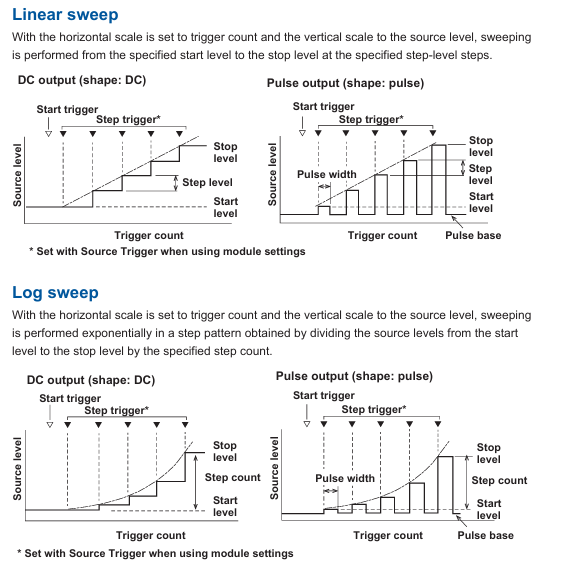
Scanning Function Scanning Types: Linear Scan, Logarithmic Scan, Program Scan (CSV Format Custom, Maximum 100001 Steps)

Repetition frequency: 1-1000 times or infinite loop

Trigger system trigger source: Bus trigger (BUS Trigger1-9), front panel trigger, internal timer (1 μ s~1s adjustable), source signal change (Src Change)

Trigger delay: 1 μ s~1 s (resolution 1 μ s)

Interface and storage interface: Ethernet (1000BASE-T), USB 3.0 (2 host ports+1 device port), GP-IB (optional)

Storage: Internal storage (219 GB for each dual zone), USB external storage, supporting BIN/CSV/PNG formats

2. Hardware structure and component functions

(1) Core components of the front panel

Component name, location, and function

There are 9 slots on the left side of the module slot (AQ23011A/AQ23012A universal), used for installing modules such as AQ23811A, slot numbers 1-9

10.1-inch color LCD (1280 × 800 pixels) in the center of the touch screen display, supporting touch operation (menu navigation, parameter settings)

The F1~F6 keys at the bottom of the function soft key screen correspond to menu options and dynamically change with the interface

Each module on the front panel corresponds to one trigger input/output terminal (TTL level, negative logic) for external trigger signal interaction

There are two USB 3.0 ports on the right side of the USB host interface, which can be inserted into a USB flash drive/portable hard drive to save data, or connected to a mouse/keyboard

Power button on the right side of the power and status light (with LED indicator light, green constant light for normal), error indicator light (red flashing for fault)

(2) Core components of the rear panel

Component Name Function

AC power interface connected to dedicated power cord (input 100~240 VAC, 50/60 Hz, maximum power consumption 120 VA)

Ethernet interface RJ45 interface, supporting TCP/IP protocol, used for remote control (HiSLIP/RawSocket) or network file sharing

External trigger interfaces Trig IN1/Trig IN2 (BNC interface, TTL level), Trig OUT1/Trig OUT2 (BNC interface), used for external trigger synchronization

The Remote Interlock terminal of the interlocking interface requires a dedicated plug (A1288JA) to enable module output and ensure safety

GP-IB interface optional interface (requires module configuration), used for remote control of traditional instruments

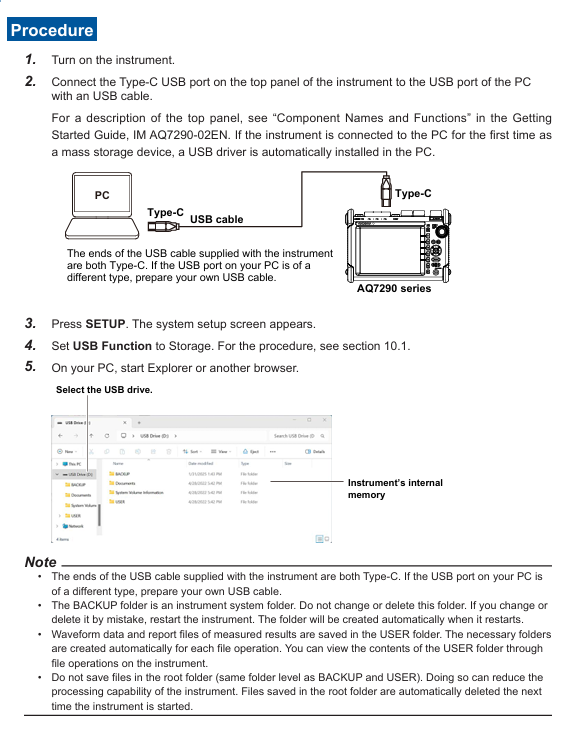
USB device interface USB Type-B interface, connected to PC for high-speed data transfer or remote control
Basic operation process

1. Startup and initialization settings

(1) Power on preparation

Hardware connection: Confirm that the framework is powered off, install the AQ23811A module (insert it into the slot rail and lock it), connect the AC power cord, and turn on the power switch on the rear panel.

Self check and startup: automatic framework detection module after startup DRAM、 File system, after passing self-test, enters the main interface (summary view); If the self-test fails (such as module not recognized), the screen will display an error code (such as E021: Slot 1 module abnormal), and the module needs to be reinstalled or repaired.

Restore default settings: Press the “Function icon” → “System” → “Reset Frame to factory default” in the upper left corner of the screen, confirm and restore the factory settings (source output turned off, measurement mode default voltage, trigger source set to None).

(2) Module calibration (key steps)

When the AQ23811A module is used for the first time or when the ambient temperature changes by more than ± 10 ℃, zero calibration needs to be performed:

Disconnect the external wiring of the module output terminal to ensure no load connection.

In the summary view, long press the module name (such as “AQ23811A SMU”) → a pop-up menu → select “CH1 ZeroSet” or “CH2 ZeroSet”.

Wait for calibration to complete (about 3-5 seconds), the screen displays “ZeroSet OK”, and after calibration, the source output offset error is ≤± 10 μ V (voltage)/± 1 pA (current).

2. Source output and measurement settings (taking AQ23811A CH1 as an example)

(1) Voltage source output setting

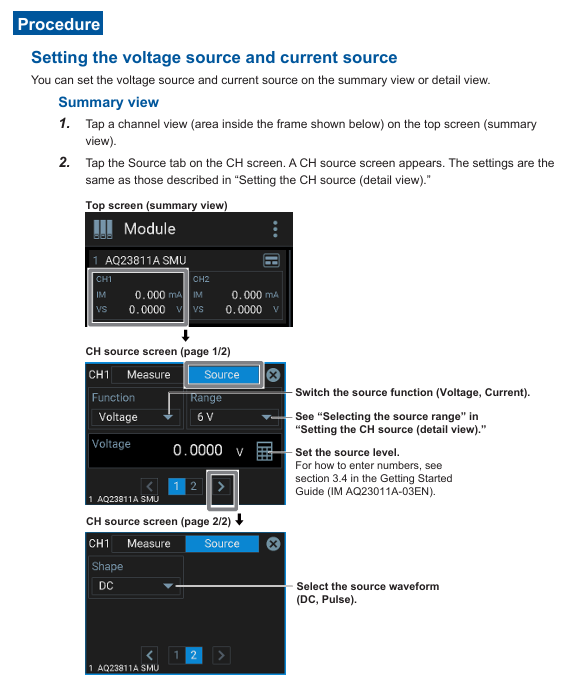
In the summary view, click on the CH1 channel area → switch to the “Source” tab.

Set parameters:

Function: Select “Voltage”.

Range: default “6 V” (only 1st gear), no need to manually switch (automatic range is consistent with fixed range).

Source level: Input target voltage (e.g. 3.3000 V, resolution 100 μ V).

Shape: Select “DC” or “Pulse” (pulse, additional pulse width and base level need to be set).

Limit: Set the maximum output current (such as 100.000 mA to prevent load overload).

Enable output: In the detail view, click the “OUTPUT” button (long press for 2 seconds). The button turns green to indicate that the output is turned on, and the CH1 terminal outputs the set voltage.

(2) Current measurement settings

Keep the CH1 output connected to the tested load, click on the CH1 channel area in the summary view → switch to the “Measure” tab.

Set parameters:

Measurement type: default “Current” (current measurement, voltage measurement automatically turned on to calculate power).

Wiring method (Wire): Select “2wire” (two-wire system, ordinary measurement) or “4wire” (four wire system, high-precision low resistance measurement).

Integral Time: Set 1 PLC (20 ms for 50 Hz grid and 16.67 ms for 60 Hz grid) to reduce power supply noise interference.

Measure Delay: Set to 10 μ s and ensure stable load before collecting data.

View results: The summary view displays the real-time measured current of CH1 (such as 50.123 mA), and pressing the “Math” key can display the calculated power (voltage x current) or resistance (voltage/current).

3. Scanning function operation (linear scanning example)

Taking “CH1 voltage linearly scanned from 0 V to 5 V, step size 0.1 V, synchronous measurement of load current” as an example:

Enter scanning settings: Press “Function icon” → “Application” → “Sweep” → select “Linear Sweep”.

Configure scanning parameters:

Scan channel (Sweep CH): Select “AQ23811A CH1”.

Measure CH: Check “AQ23811A CH1” for measuring current.

Scanning range: Start Level 0 V, Stop Level 5 V, Step Level 0.1 V.

Trigger settings: Set the Start Trigger to “None” (immediate start) and the Step Trigger to “Cyclic” (triggered by an internal timer with an interval of 100 ms).

Start scanning: Click the “Start” button (long press for 2 seconds), the screen displays the scanning progress (steps, expired time), and the measurement data is automatically saved to internal storage (default CSV format).

View results: After scanning is complete, press “File” ->”Internal memory” ->view the “sweet_xxx. csv” file, which contains the voltage, current, and power values for each step.
Core functions and advanced operations

1. Trigger function (precise synchronization signal)

The AQ2300 series supports multiple types of triggering, ensuring that source output or measurement is initiated under specific conditions. The core triggering modes are as follows:

Trigger type functional characteristics and applicable scenario operation examples

Bus triggering utilizes the framework bus (BUS Trigger1-9) to synchronize multiple modules, supporting external trigger signals (Trig IN1/Trig IN2) or internal timers. Set BUS Trigger1 to “Trig IN1” and CH1 source trigger to “BUS Trigger1”, and start voltage output when external signals trigger

Source change triggers measurement when the source level changes (Src Change), suitable for capturing the dynamic response of the load CH1. When the source level jumps from 1 V to 2 V, it automatically triggers current measurement and records the current changes before and after the jump

Periodic triggering: Repeat the triggering measurement at a fixed cycle (minimum 1 ms), suitable for long-term stability monitoring. Set the “Cyclic” triggering cycle to 1 s, measure continuously for 1 hour, and analyze the load current drift situation

Scan start trigger: Wait for an external trigger (such as Trig IN2) before starting the scan, suitable for multi device synchronous testing. Set the scan start trigger to “Trig IN2”, and only start voltage scanning after the external signal is triggered, synchronously collecting oscilloscope waveforms

2. File operation (data management)

(1) Data saving types and formats

Data Type Format and Usage Save Operation

Measure data BIN (binary, high-precision, small space occupation), CSV (text, can be imported into Excel for analysis) in the detail view, press “Store” ->set the number of collection points (such as 100 points) ->”Save Store Data” ->select the storage path

Configuration files. 811 (module configuration) and. FRM (framework configuration) are used to save the current parameters. Next time, long press the module name ->”Save Setup” ->name the file (such as “SMUFHIR 1_3V. set”) ->save to a USB drive

Screenshot PNG (image format, resolution 1280 × 800), used for report recording. Press “Function icon” → “Take a Screenshot” and automatically name it “AQ2300_SC_000. PNG” to save to internal storage

Error log (text), automatically records hardware failures and operational errors, used for troubleshooting framework to automatically save, export to USB drive by pressing “System” → “System Log” → “Save System Log File”

(2) File management operations

Folder creation: Press “File” ->”Location” ->select “USB Storage” ->”Create new folder” ->Name (e.g. “Test_202410”).

File copying/deleting: Select the file (such as “sweet_001. csv”) ->click on the menu on the right side of the file ->select “Copy” ->select the destination folder ->”Paste”; The deletion operation is similar and requires confirmation of a second prompt.

File filtering: In the file list interface, enter filtering criteria (such as “*. csv”) to display only CSV format files and quickly locate the target data.

3. System settings (remote control and security)

(1) Remote control configuration

Supports four remote control methods: RawSocket, HiSLIP, GP-IB, and USB. Taking Ethernet as an example:

Press “Function icon” → “System” → “Network” → “IPv4” → Set to “DHCP ON” (automatically obtain IP) or manually enter (e.g. IP: 192.168.1.100, subnet mask: 255.255.255.0).

Configure remote protocol: “Remote” → “Function” Select “HiSLIP” → Set port (default 4880), encryption (Encryption OFF/ON, select as needed).

PC control: Install the NI-VISA driver and use LabVIEW/Python to send SCPI commands (such as “SOURce1: CHANnel1: VOLTage: LEVel 3.3” to set CH1 output to 3.3 V).

(2) Safety interlock setting

To prevent damage to the load caused by misoperation, the interlocking function needs to be activated:

Connect the “Remote Interlock” terminal on the rear panel to the dedicated plug (A1288JA).

Press “System” → “Inter Lock” → Set to “Locked”, and the module output will be disabled; You need to enter the default password “12345” → set it to “Unlocked” to enable output.

Password management: It can be modified through “Reset Password” (default) or “Change Password” (custom password, 6-12 digits) to enhance security.
Maintenance and troubleshooting

1. Daily maintenance

Cleaning: Wipe the display screen and housing with a dry soft cloth. If there is dust on the BNC terminal and USB interface, blow it off with compressed air (pressure ≤ 0.3 MPa); Prohibit the use of solvents such as alcohol and acetone to avoid damaging the coating.

Module maintenance: Regularly check whether the module is in close contact with the slot (once a month), and when not in use for a long time, turn on the power for 1 hour every month to prevent capacitor aging.

Calibration cycle: It is recommended to send it to the authorized service center of Yokogawa for calibration once a year, or use a standard source (such as Yokogawa 7520 calibrator) for self calibration to ensure that the accuracy meets the requirements.

2. Troubleshooting

Possible causes and solutions for the fault phenomenon

Unrecognized module not locked, poor slot contact, module failure. Re plug and lock the module, replace the slot for testing; If still not identified, contact maintenance

Source output voltage interlock not unlocked, output not enabled, current limit value set to 0, load short circuit unlock interlock, long press “OUTPUT” to enable output, check current limit value (set to ≥ 1 mA), check load wiring

The measurement value fluctuates greatly, the integration time is too short, the wiring is loose, and the power supply noise interference increases the integration time (such as 10 PLC). Check the wiring (ensure good contact of the sense line in the four wire system) and stay away from interference sources such as frequency converters

USB cannot read USB flash drive format not supported (FAT32/NTFS required), poor interface contact, damaged USB flash drive, formatted USB flash drive as FAT32, re plug and unplug USB flash drive, replace USB flash drive for testing

Remote control failed due to IP address mismatch, protocol not enabled, firewall interception confirmation framework on the same network segment as PC, HiSLIP/RawSocket protocol enabled, PC firewall disabled

3. System self-test and logging

Self check operation: Press “System” ->”Self Test” ->select “DRAM Test”, “File System Test”, “Battery Test” ->”Start”. The self-test result shows “Pass/Tail”. If it fails, please contact maintenance.

Log viewing: Press “System” → “System Log” to view system logs (such as module installation time, firmware update records) and user logs (such as operation error codes). The logs can be exported in ZIP format and saved to a USB drive for maintenance analysis.
YOKOGAWA DLM3054HD Mixed Signal Oscilloscope

Instrument positioning and core use

DLM3054HD is a 4+16 channel mixed signal oscilloscope (4 analog channels+16 digital channels), with the core advantages of high sampling rate, large storage depth, and multi-channel synchronous measurement capability. It can simultaneously capture analog signals (such as voltage and current) and digital signals (such as SPI, CAN, UART communication signals), realizing the linkage analysis of “analog waveform+digital logic”.

The main application scenarios include:

Automotive electronics: ECU (Electronic Control Unit) signal monitoring, CAN/LIN bus communication analysis, motor drive waveform and control logic synchronization diagnosis.

Industrial control: timing matching of PLC (Programmable Logic Controller) output signals and sensor feedback signals, analysis of servo system voltage/current and pulse signals.

Power electronics: synchronous capture of inverter switch waveforms, IGBT drive signals, and protection logic to locate switch losses or fault triggering causes.

Core technical parameters and hardware structure

1. Key technical parameters

The hardware performance of DLM3054HD covers high bandwidth, high sampling rate, and large storage depth. The core parameters are as follows:

Parameter category specific specifications

Number of simulated channels: 4; Bandwidth: 100MHz (-3dB); Sampling rate: 2GSa/s per channel (single channel), 1GSa/s per channel (dual channel), 500MSa/s per channel (four channel); Vertical sensitivity: 1mV/div~10V/div (probe attenuation ratio 1X/10X/100X switchable)

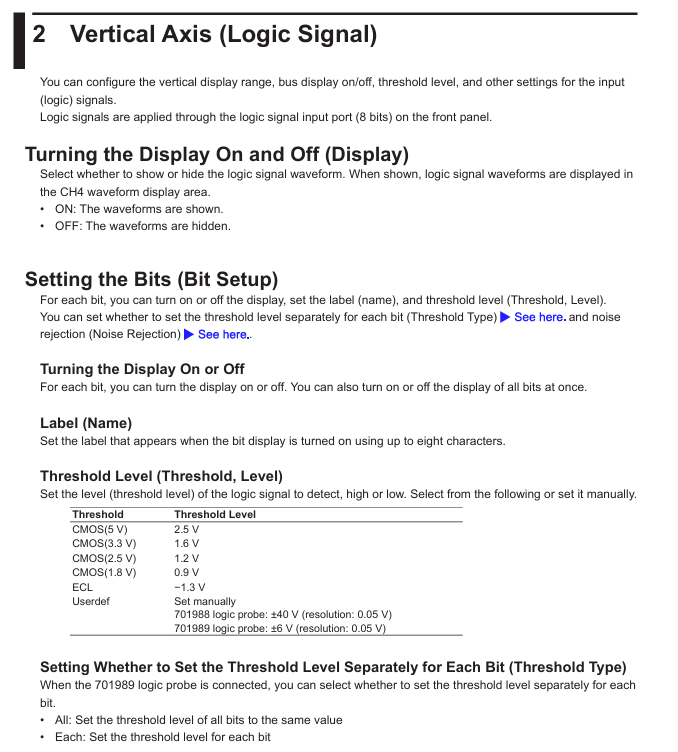
Number of digital channels: 16 channels (logic probe extension); Input voltage range: 0~5V (TTL/CMOS compatible); Sampling rate: synchronized with the analog channel (up to 2GSa/s); Threshold voltage: adjustable from 0.8V to 2.0V (suitable for different logic levels)

Storage depth simulation channels: maximum 125Mpts per channel (single channel), 62.5Mpts per channel (dual channel), 31.25Mpts per channel (four channel); Digital channel: Shared storage with analog channel, with no change in total storage depth

Time reference time base range: 1ns/div~50s/div; Horizontal resolution: 1ps (high-resolution mode); Trigger delay: -100ns~1000s (accurate to 1ps)

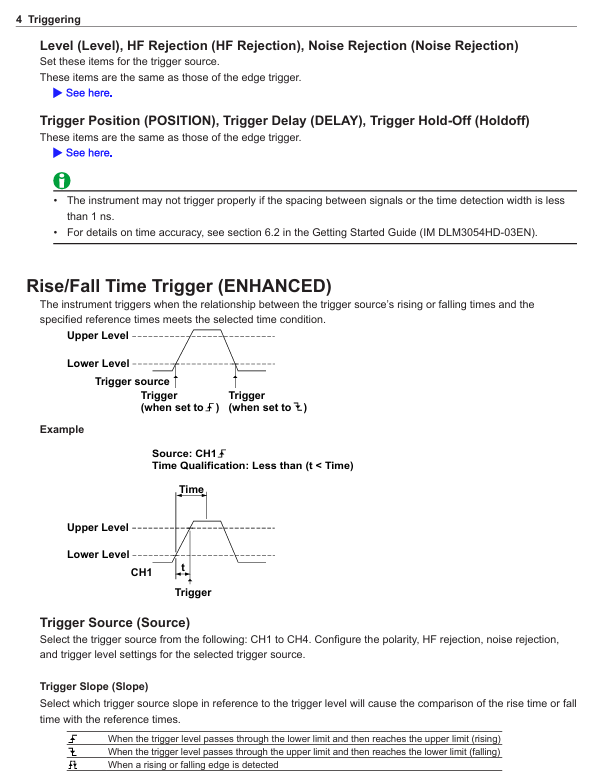
The triggering function supports edge triggering, pulse width triggering, video triggering, bus triggering (CAN/LIN/SPI/I2C), and mode triggering (analog+digital combination logic); Trigger sensitivity: ≤ 5mV (20%~80% threshold) under 100MHz bandwidth

Automatic measurement of analysis function: 50+parameters (peak to peak value, effective value, frequency, duty cycle, etc.); Mathematical operations: addition, subtraction, multiplication, and division, FFT (up to 1M points), filtering (low-pass/high pass/band-pass); Protocol decoding: CAN 2.0A/B, LIN 2.0, SPI, I2C, UART/RS-232/485

Display and interface screen: 10.1-inch color LCD (1280 × 800 pixels, capacitive touch); Interfaces: USB 3.0 (2 for data storage/PC connection), Ethernet (1000BASE-T, remote control), HDMI (video output), EXT TRIG (external trigger input), AUX OUT (auxiliary output)

2. Hardware structure and component functions

(1) Core components of the front panel

Component name, location, and function

Four BNC interfaces (CH1~CH4) on the left side of the analog channel input terminal, connected to analog probes (such as Yokogawa 701977 differential probe), supporting 1X/10X/100X attenuation ratio settings

The “DIGITAL” port on the right side of the digital channel interface is connected to 16 logic probes (which need to be purchased separately, such as Yokogawa 701982) to achieve digital signal acquisition

The central area of the touch screen supports multi finger zoom (waveform zoom), drag and drop (waveform translation), and displays function soft keys (F1~F6) at the bottom

The front panel buttons include “Auto Setup”, “Run/Stop”, “Single”, “Save”, and channel on/off keys (CH1-CH4, DIGITAL)

Knob and directional keys vertical/horizontal position knob (adjust waveform up/down/left/right offset), vertical/horizontal zoom knob (adjust sensitivity/time base), directional keys (menu navigation)

There are two USB 3.0 ports at the bottom of the USB host interface, which can be inserted into a USB flash drive/portable hard drive to save data, or connected to a mouse/keyboard to improve operational efficiency

(2) Core components of the rear panel

Component Name Function

AC power interface connected to dedicated power cord (input 100~240VAC, 50/60Hz, maximum power consumption 120VA)

Ethernet interface RJ45 interface, supporting TCP/IP protocol, used for PC remote control (VISA/LXI compatible) or data network transmission

Connect the HDMI output interface to the monitor and synchronize the content of the oscilloscope screen (supporting 1080P resolution)

EXT TRIG interface BNC interface, receiving external trigger signals (trigger sensitivity ≤ 50mV, frequency ≤ 100MHz)

AUX OUT interface BNC interface, output trigger signal or sampling clock (for synchronizing other instruments)

USB device interface USB Type-B interface, connected to PC, enables high-speed data transfer (such as waveform file export) or remote control

Basic operation process

1. Startup and initialization settings

(1) Power on preparation

Hardware connection: Confirm that the instrument is powered off, connect the analog probes (CH1~CH4) and digital logic probes (if necessary), insert the AC power cord, and turn on the power switch on the rear panel.

Start self-test: After powering on, the instrument automatically performs hardware self-test (checking channels, triggering systems, storage modules), and enters the main interface after passing the self-test; If the self-test fails and the screen displays an error code (such as E012: CH1 channel abnormality), contact maintenance.

Restore default settings: To reset all parameters, press the “Utility” key → “System” → “Factory Reset”, confirm and restore to factory default (time base 100 μ s/div, vertical sensitivity 1V/div, trigger mode automatic).

(2) Probe calibration (key steps)

To ensure measurement accuracy, calibration should be performed on the analog probe after its first use or replacement

Connect the probe to CH1, set the probe attenuation ratio to 10X, and connect the probe tip to the front panel “CAL” terminal (providing 1kHz, 3Vp-p standard square wave) with the grounding clip.

Press the “CH1” key → “Probe Setup” → “Probe Calibration”, the instrument automatically collects standard square waves, calibrates vertical gain and phase, and displays “Calibration OK” after calibration is completed.

Repeat steps 1-2 to complete calibration of other analog channel probes; The digital probe does not require calibration, but it needs to be confirmed that the threshold voltage matches the measured logic level (such as TTL set to 1.4V).

2. Signal acquisition and basic settings

Taking “synchronous acquisition of analog signal (CH1)+digital signal (D01~D04)” as an example, the operation process is as follows:

Channel activation: Press the “CH1” button on the front panel (indicator light on), press the “DIGITAL” button (indicator light on), and activate 1 analog channel and 16 digital channels (unnecessary channels can be disabled through “Digital Setup”).

Parameter settings:

Vertical setting: Rotate the CH1 vertical sensitivity knob and adjust it to the appropriate gear (if the measured signal is 5Vp-p, set it to 1V/div); Press the “CH1” key → “Offset”, rotate the vertical position knob to center the waveform.

Horizontal setting: Rotate the horizontal time base knob and select the time base gear (if the measured signal frequency is 1kHz, set it to 100 μ s/div, and display 10 grids per cycle); Press the “Horizontal” key → “Delay” to set the trigger delay to 0 (real-time acquisition).

Trigger settings: Press the “Trigger” key → “Source” to select “CH1”, “Type” to select “Edge”, “Slope” to select “Rising”, rotate the trigger threshold knob to place the threshold line in the middle of the rising edge of the CH1 waveform.

Start acquisition: Press the “Run/Stop” button (indicator light is green and constantly on), and the instrument will start continuous signal acquisition. The screen will synchronously display CH1 analog waveform and D01~D04 digital waveform (digital channels are displayed with high and low level bars, with high level being “1” and low level being “0”).

Single acquisition: To capture a single transient signal (such as a fault pulse), press the “Single” button, and the instrument will wait for the triggering conditions to be met before collecting the waveform once. After the acquisition is completed, it will automatically stop (the “Run/Stop” indicator light is red and always on).

3. Auto Setup function

For beginners or quick testing scenarios, parameter configuration can be completed with one click through “Auto Setup”:

Connect the probe to the measured signal and press the “Auto Setup” button on the front panel.

The instrument automatically detects signal amplitude and frequency, sets vertical sensitivity, time base, trigger source, and threshold, and displays the optimized waveform on the screen (default display shows all open channels).

If the waveform display is poor (such as too small amplitude or unstable triggering), the vertical sensitivity or triggering threshold can be manually adjusted without the need to perform automatic settings again.

Core functions and advanced operations

1. Trigger function (precise capture of target signals)

DLM3054HD supports multiple trigger types, covering both conventional and complex signal scenarios. The core trigger modes are as follows:

Trigger type functional characteristics and applicable scenario operation examples

Edge triggering is the most basic triggering mode, which detects the rising/falling/double edge of the signal and is suitable for stable periodic signals (such as sine waves and square waves). The triggering source is set to “CH1” and the slope is set to “Falling” to capture the zero crossing falling signal of the power supply voltage

Pulse width trigger is triggered based on the pulse width (greater than/less than/equal to/not equal to the set value), suitable for capturing narrow pulse or wide pulse fault signals. The trigger source is set to “CH2” and the condition is set to “Width>10 μ s” to capture excessively wide pulses in the motor drive signal

Bus triggering supports CAN/LIN/SPI/I2C/UART protocols, triggered by specific frame IDs and data contents, suitable for communication signal analysis. CAN triggering: set to “ID=0x123”, data “D0=0x55”, captures CAN frames sent by specific ECUs

Mode triggered combination of analog and digital channel condition triggering (such as “CH1>2V and D01=1 and D02=0”), suitable for complex timing triggering conditions set to “CH3 (IGBT drive)>15V AND D05 (protection signal)=0”, capturing the protection trigger when IGBT is conducting

Video triggering supports NTSC/PAL/SECAM standards, triggered by field/line, suitable for video signal testing (such as car display screen signals). The trigger source is set to “CH4”, the standard is set to “PAL”, and the field is set to “Even”, capturing even field signals of the video

2. Analysis function (extracting key signal information)

(1) Automatic measurement

Press the “Measure” button on the front panel to enter the automatic measurement interface, and select “Add Measurement”.

Select parameters from the measurement category (voltage/time/frequency/count) (such as “Vpp” peak to peak value, “Freq” frequency, “Duty” duty cycle), and specify the measurement channel (such as CH1, D01).

The measurement results are displayed at the bottom of the screen (updated in real-time), supporting the simultaneous display of 10 measurement parameters; Press the “Statistics” button to view statistical data (mean, maximum, minimum, standard deviation).

(2) Mathematical Operations and FFT Analysis

Mathematical operation: Press the “Math” key, select the operation type (such as “CH1-CH2” to calculate differential signals, “CH3 × CH4” to calculate power waveforms), set the operation range (full screen/specified area), and display the operation result waveform on the screen (default red).

FFT analysis: Press the “Math” key → “FFT”, select the FFT channel (such as CH1), set the number of FFT points (128~1M points, the more points there are, the higher the frequency resolution), window function (Hanning window/rectangular window, reducing spectrum leakage), switch the screen to frequency domain display, and label the peak frequency and amplitude.

(3) Protocol decoding (communication signal analysis)

Taking CAN bus decoding as an example:

Press the “decode” key → “Add decode” → “CAN”.

Set the decoding channel (such as “CH1” as CAN_S, “CH2” as CAN_L), baud rate (such as 500kbps), and protocol version (CAN 2.0A/B).

The screen displays the CAN frame decoding result (frame ID, data length, data content, frame type), which is aligned with the simulated waveform time. Clicking on the decoding entry can locate the corresponding waveform position and quickly troubleshoot communication errors (such as bit errors and CRC errors).

3. Data management (saving and exporting)

(1) Data saving types and formats

DLM3054HD supports multiple data formats to meet different usage needs:

Data Type Format Usage

Save analog/digital waveforms in. wfm (Yokogawa specific format, including waveforms and settings) and. csv (numerical format, can be imported into Excel for analysis) for later playback or data analysis

Screenshot. bmp/. png/. jpg (image format) saves the current screen display content for report generation or fault recording

Set file. set (instrument setting parameters, including channel, trigger, measurement configuration) to save commonly used test configurations, which can be directly imported for the next use without the need for repeated settings

Decoding Data. txt (text format, including protocol frame information) stores the bus decoding results for analyzing communication frame sequences

(2) Quick save operation

Press the “Save” button on the front panel, and a save menu will pop up on the screen. Select the save type (such as “Waveform” or “Screenshot”).

Select the save location (USB device/internal memory), enter the file name (supports Chinese/English, default includes date and timestamp).

Press the “OK” button to complete the save. After successful saving, the screen will display a “Save Completed” prompt.

(3) PC data export

Connect the oscilloscope to the PC via a USB cable and install Yokogawa specific software (such as “Yokogawa Scope Order”) to achieve:

Real time data transmission: The PC displays the waveform collected by the oscilloscope in real-time, supporting remote control of acquisition and parameter settings.

Batch data export: Export the. wfm/. csv files from the oscilloscope’s internal memory or USB device to a PC and perform secondary analysis using Excel or MATLAB.

Maintenance and troubleshooting

1. Daily maintenance

Cleaning: Use a dry soft cloth to wipe the display screen and housing. If there are stains, dip a small amount of water to wipe them (do not use solvents such as alcohol and acetone to avoid damaging the coating); If there is dust on the BNC terminal and USB interface, it can be blown clean with compressed air (pressure ≤ 0.3MPa).

Probe maintenance: Regularly check whether the probe cable is damaged and whether the probe tip is oxidized (lightly polish with fine sandpaper during oxidation); Simulate probe calibration every 6 months to ensure measurement accuracy (can be done using the oscilloscope’s built-in “Probe Calibration” function or sent for calibration).

Storage media: USB devices and SD cards (if any) need to be formatted regularly (using oscilloscope formatting function) to avoid file fragmentation affecting storage speed; Long term unused storage media should be stored in a dry environment to prevent data loss.

2. Troubleshooting

Possible causes and solutions for the fault phenomenon

Power cord not connected properly, power switch not turned on, internal power failure. Check the power cord connection and confirm that the power switch is turned on; If there is still no response, contact Yokogawa for repair

The waveform has no display, the channel is not turned on, the probe is not connected/damaged, the trigger is not set correctly, and the signal is not input. Press the channel key to turn on the corresponding channel, check the probe connection and attenuation ratio, reset the trigger source and threshold, and confirm that the measured signal is normal

Unstable trigger threshold inappropriate, excessive signal noise, incorrect trigger source selection. Fine tune the trigger threshold to the signal edge, turn on “trigger filtering” (reduce noise interference), and replace with a more stable trigger source

Data saving failed due to unrecognized USB device, full storage medium, unsupported file format. Re plug and unplug the USB device, delete useless files to free up space, and select a format supported by the oscilloscope (such as. wfm/. csv)

Remote control failed due to network disconnection, IP address mismatch, VISA driver not installed. Check Ethernet/USB connection, confirm that oscilloscope and PC IP are in the same network segment, and reinstall VISA driver

3. Calibration and Maintenance

Calibration cycle: It is recommended to conduct a comprehensive calibration once a year. You can contact the authorized service center of Yokogawa or refer to the “User Calibration Manual” for self calibration (requiring a standard signal source, such as Yokogawa FG420 function generator).

Maintenance restrictions: It is prohibited to disassemble the instrument by oneself (disassembly will void the warranty). If there is a hardware failure (such as abnormal channel or damaged screen), please contact Yokogawa Global Service Center (contact information can be found in PIM 113-01Z2) and have it repaired by a certified engineer.

YOKOGAWA CW500 Power Quality Analyzer

Instrument positioning and core use

CW500 is a portable power quality analyzer that can accurately measure voltage, current, power, harmonics, and power quality events (sudden rise/fall/interruption, transient overvoltage, impulse current, flicker, etc.). It supports various wiring systems from single-phase two wire to three-phase four wire, and is widely used in power quality assessment and problem solving in factory distribution systems, new energy power stations, data centers, and other scenarios.

Core difference models: divided into two categories: with Bluetooth function (- B1, only applicable in Japan, the United States, and Canada) and without Bluetooth function (- B0). The power cord is configured according to regional standards (such as GB standards, VDE standards, etc.), and the corresponding model needs to be selected according to the usage region.

Open box inspection and accessory instructions

1. Packaging content confirmation

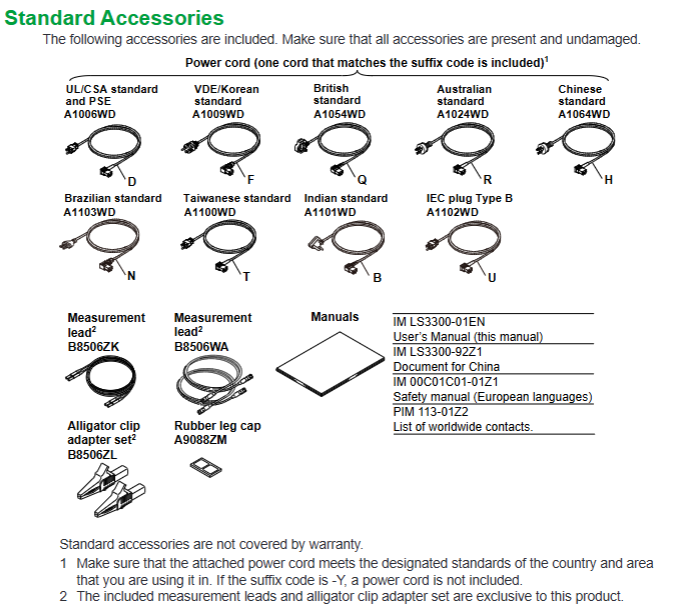
After unboxing, it is necessary to verify the instrument model and suffix code (such as power cord standard, Bluetooth function) to ensure consistency with the order. The core accessories are shown in the table below:

Serial number, accessory name, model/specification, quantity description

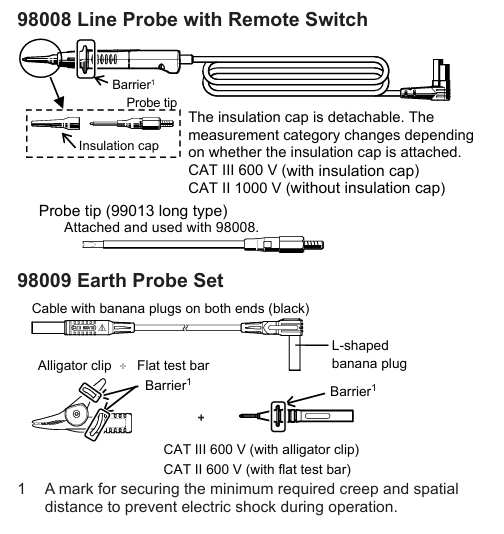
1 set of voltage probe 98078, including 4 red, white, blue, and black wires (with crocodile clip), to match the terminals according to the wiring color

According to regional standards (such as UL/CSA for – B and GB for – H), one cord with a maximum rated voltage of 250V (125V for some models) needs to be matched with local power grid standards

3 USB cables L3064AD 1 for connecting PC and instrument, supporting data transmission and remote control

4 AA alkaline batteries (LR6) with 6 spare power supplies, with a full charge range of about 3 hours (when the backlight is turned off)

5 SD memory cards 97060 (2GB), 1 card for storing measurement data, supporting FAT16 format

6 portable cases 93046 1 protective instrument from impact and dust

7 Input Terminal Board -1 piece selected by wiring color (6 types), pasted on the top terminal area of the instrument

8 ID tags with 8 colors (red/blue/yellow, etc.) are pasted on both ends of the probe, corresponding to the terminal colors, to avoid wiring errors

9 CDs -1 sheet including application software and electronic manual (PDF)

1 set of 10 manuals including IM CW500-02EN, quick start guide, installation manual, and safety manual

2. Optional accessories (purchased separately)

It mainly includes current clamp probes with different ranges (2A~3000A, such as 2A for 96060 and 3000A for 96066), power adapters (98031, CW500 specific), banana head DIN adapter cables (99073), etc. The appropriate probe should be selected according to the measurement current range.

Safety regulations and operational limitations

1. Safety symbols and warnings

Warning: Refers to the risk of fatal/serious injury, such as prohibition of use in explosive environments, prohibition of unauthorized disassembly of instruments, and power-off and removal of probes before replacing batteries.

CAUTION: It involves the risk of minor injury or equipment damage, such as avoiding short circuits at the metal end of the probe, measuring beyond the range for a long time, and using in humid environments.

Protection level: Double insulation design, measurement category in accordance with IEC61010 standard, voltage limits for different categories are as follows:

CAT IV: 300VAC (applicable to power input terminal)

CAT III: 600VAC (applicable to distribution panels, circuit breakers)

CAT II: 1000VAC (suitable for household appliances and portable tools)

2. Operating environment restrictions

Environmental conditions: working temperature 0~45 ℃, relative humidity ≤ 85% (no condensation); Storage temperature -20~60 ℃, altitude ≤ 2000m, indoor use.

Electromagnetic compatibility: Class A industrial equipment may cause radio interference when used in residential areas, and users need to solve the interference problem themselves; Compliant with standards such as EN 61326-1 and EN 55011 Class A.

Instrument structure and functional layout

1. Name and function of core components

(1) Front panel

Component Function Description

Display screen 3.5-inch color TFT LCD (320 × 240 pixels), displaying measurement data, waveforms, vector graphics, etc

Function keys (F1~F4) execute menu options at the bottom of the screen, such as “Zoom”, “Trend”, “Customize”

The PRIMT SCREEN key saves the current screen as a BMP file to the SD card

Press and hold the DATA HOLD/KEY LOCK key for 2 seconds to lock all keys, then press and hold again to unlock; Short press to maintain display (measurement continues)

Press and hold the power button to turn on/off, and the interface from the last shutdown will be displayed after turning on

LCD key switches backlight switch, adjusts contrast and brightness

START/STOP key to start/stop data recording, status LED: green light constantly on indicates recording, green light flashing indicates standby

(2) Top terminal area

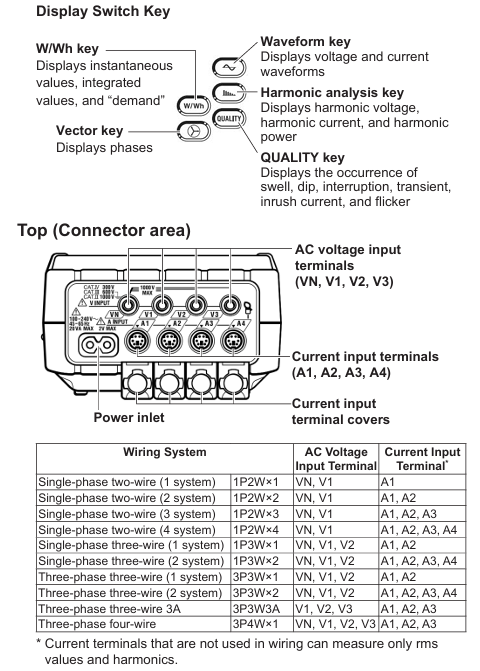
Voltage input terminals: VN (neutral wire), V1/V2/V3 (phase wire), supporting single-phase to three-phase wiring.

Current input terminals: A1/A2/A3/A4, connected to clamp probes. Unused current terminals can only measure effective values and harmonics.

Power interface: Connect a dedicated power cord and support wide voltage input of 100-240VAC.

(3) Side and back

Side: SD card slot (supporting 2GB SD card), USB Type-B interface (connected to PC), analog input terminal (2-channel, ± 11VDC, monitoring temperature sensor and other signals), digital output terminal (open collector, outputting low level when power quality event triggers).

Back: Battery cover (6 AA batteries), instrument serial number label (to be provided when contacting the dealer).

2. Probe and wiring identification

Voltage probe: equipped with a safety barrier (to avoid finger crossing), connected to the tested circuit at the crocodile clip end, and connected to the instrument voltage terminal at the other end. It needs to be matched with the ID marked color (such as red connected to V1, blue connected to VN).

Clamp probe: The direction of the arrow should be consistent with the current flow direction (otherwise the polarity of the active power will reverse), supporting a range of 2A~3000A. When connecting, it should be aligned with the arrow mark on the instrument current terminal.

Basic operation process

1. Power supply mode setting

(1) Battery powered

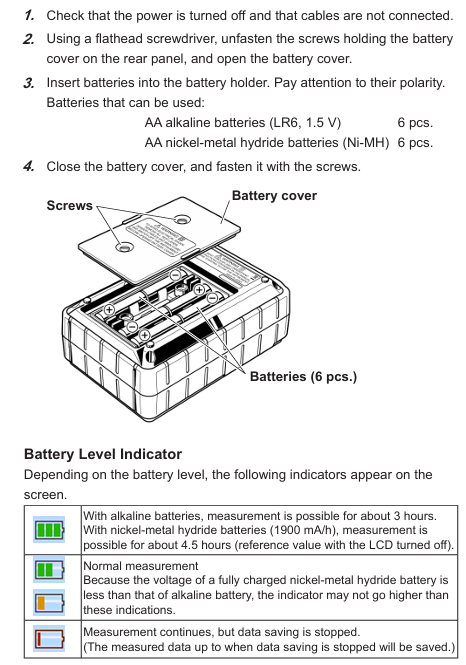
Confirm that the instrument is powered off, use a Phillips screwdriver to open the back battery cover, and insert 6 AA alkaline batteries (or nickel hydrogen rechargeable batteries) according to polarity.

Close the battery cover and tighten the screws. After turning on, the battery icon will be displayed at the top of the screen, with 4 bars indicating full charge and 1 bar indicating low battery (needs to be replaced in a timely manner).

Attention: Nickel hydrogen batteries need to be charged with a dedicated charger, and the instrument does not support charging function; Long term disuse requires removing the battery to avoid leaking and damaging the instrument.

(2) AC power supply

Confirm that the instrument is powered off, connect one end of the power cord to the top power interface of the instrument, and plug the other end into a socket that meets local standards (100-240VAC, 50/60Hz).

After booting up, the AC power icon is displayed at the top of the screen, with a maximum power consumption of approximately 7VA.

2. Preparation before measurement

(1) Paste terminal board and ID mark

Select the input terminal board that matches the wiring color from the accessories (such as TYPE 1: VN=blue, V1=red, V2=green), clean the top terminal area of the instrument, and paste it.

Paste the ID tag on both ends of the probe to ensure consistency with the terminal color (such as connecting the red probe to the V1 terminal), to avoid wiring errors.

(2) SD card installation

Open the side SD card slot cover, insert the SD card face up (hear a “click” sound to indicate installation), and close the slot cover.

The new SD card needs to be formatted on the instrument (through the SETUP menu), as formatting on a PC may result in abnormal recording; Stop recording before removing the SD card to avoid data damage.

3. Wiring and measurement startup

Taking the “three-phase four wire (3P4W)” wiring as an example, the process is as follows:

Power off confirmation: Ensure that the tested circuit is powered off, remove the instrument power supply and probe.

Voltage wiring: Connect the voltage probe crocodile clip to VN (neutral wire) and V1/V2/V3 (phase wire) respectively, and insert the other end of the probe into the instrument VN and V1/V2/V3 terminals.

Current wiring: Clamp the clamp probe on the outside of the V1/V2/V3 phase line (arrow pointing towards the current flow direction), and insert the probe plug into the A1/A2/A3 terminals accordingly.

Power on and setup: Press and hold the power button to turn on the device, press the SETUP button to enter “Basic Setup”, select the wiring system as “3P4W”, confirm the voltage range (default 600V), and current clamp model (e.g. 96064 is 500A).

Start recording: Press the START button, the status LED green light stays on, the screen displays “REC”, and start recording measurement data; Press the STOP button to stop recording, and the data will be automatically saved to the SD card.

4. Data display and operation

(1) Key function key operation

W/Wh key: Switch between displaying instantaneous values (voltage, current, power), integrated values (electrical energy Wh, varh), and demand values (DEM Target/Guess/Max).

Vector key: Display voltage/current vector diagram, check if the wiring phase is correct (e.g. three-phase voltage phase difference should be 120 °).

Waveform key: Display real-time voltage/current waveforms, switch channels using the directional keys, and adjust the time scale by pressing the F2 key (e.g. 5ms/div).

Harmonic key: displays the harmonic analysis results (1st to 50th harmonics), including THD (total harmonic distortion) and the percentage of voltage/current for each harmonic.

QUALITY key: displays the record of power quality events, such as the occurrence time and value of sudden rise (default 110% rated voltage), sudden drop (default 90% rated voltage), and interruption (default 10% rated voltage).

Core functions and technical parameters

1. Measurement function and scope

Measurement parameter range/range accuracy (typical values)

Voltage (RMS) 600.0V/1000V ± 0.2% reading ± 0.2% range (sine wave, 40~70Hz)

Current (RMS) 2A~3000A (depending on clamp probe) ± 0.2% reading ± 0.2% range+probe accuracy

Active power 2000W~3000kW ± 0.3% reading ± 0.2% range (power factor=1, sine wave)

Frequency 10.00~99.99Hz ± 2dgt (40~70Hz, V1 range 10%~110%)

Harmonic (1~50 times) THD 0.0%~100.0% complies with IEC61000-4-30, Class 3 accuracy

Flashing Pst (short-term) and Plt (long-term) comply with IEC61000-4-15, with a reading of ± 10%

2. Data recording and storage

Record interval: adjustable from 1 second to 30 minutes, supporting manual/continuous/timed recording modes.

Storage media: Built in 4MB flash memory (used without SD card), 2GB SD card (default accessory), saved in CSV format, supports PC analysis later.

Event recording: Automatically record events such as sudden rise, sudden drop, interruption, transient overvoltage, surge current, etc. The trigger threshold can be customized (such as a sudden rise threshold of 110% of the rated voltage).

Common Problems and Maintenance

1. Troubleshooting

Possible causes and solutions for the fault phenomenon

If there is no response when starting up, the battery is dead or the installation is reversed. If the power cord has poor contact, replace the battery and confirm the polarity. Check the power cord connection

No measurement data, probe not connected properly, wiring error, improper range setting. Reconnect the probe, check the terminal color and wiring diagram, and confirm that the range covers the measured value

SD card cannot be read, unformatted, damaged, poor contact. Format SD card on the instrument (SETUP → Save → Format), replace SD card

Record if the SD card is full or the battery is low, delete useless data or replace the SD card, connect to AC power or replace the battery during the recording process

2. Daily maintenance

Calibration cycle: It is recommended to calibrate once a year. You can contact the authorized service center of Yokogawa or refer to the “User Calibration Manual” on the official website for self calibration (standard calibration source is required).

Probe maintenance: Regularly check whether the insulation layer of the probe is damaged and whether the metal end is oxidized; The voltage probe crocodile clip needs to be cleaned to ensure good contact.

Instrument cleaning: Wipe the outer shell with a dry soft cloth and avoid using corrosive solvents such as alcohol and gasoline; If there is dust in the terminal area, it can be blown clean with compressed air.

YOKOGAWA CA500/CA550 Multi functional Process

Instrument positioning and core use

CA500/CA550 is a portable multifunctional process calibrator, whose core function is to provide standard signal generation and parameter measurement for field instruments such as transmitters, sensors, and controllers. It supports synchronous operation of “generation measurement” and achieves high efficiency and accuracy in instrument calibration. The core difference between the two lies in the addition of HART/BRAN communication function in CA550, which can directly interact with smart meters, read device information, perform loop testing, and output adjustment.

Core functions and technical parameters

1. Overview of core functions

CA500/CA550 supports 6 types of signal generation and 6 types of parameter measurement, covering mainstream calibration requirements in industrial sites. The specific functional comparison is as follows:

Function type supports signal (CA500/CA550 universal) CA550 additional functions

Signal generation includes DC voltage (100mV~30V), DC current (20mA/4-20mA), resistance (400 Ω/4000 Ω), thermocouple electromotive force, RTD simulation, frequency/pulse (1Hz~50kHz/CPM), HART/BRAN communication signal superposition, program scanning (20 calibration points), and automatic data grading (Pass/Tail)

Parameter measurement: DC voltage (100mV~50V), DC current (50mA), resistance (400 Ω/4000 Ω), thermocouple temperature, RTD temperature, frequency/pulse counting. HART device information reading (label, range, diagnostic data), BRAIN device model/serial number reading, calibration data CSV export

Scanning function includes linear scanning (0%~100% linear variation), step scanning (equidistant step output), program scanning (CA500 supports 10 points), program scanning supports 20 points, can associate calibration object information (model, serial number, label), automatically save scanning data and grading results

Data management manually saves 100 pieces of data, scanned data is automatically saved (in CA500 dedicated format), data is saved in CSV format (supporting comma/semicolon/tab separation), USB storage is exported, and folders are automatically classified by “year/month/day”

2. Key technical parameters

Accuracy level: DC voltage ± 0.01% FS, DC current ± 0.01% FS, resistance ± 0.01% FS, temperature (thermocouple) ± 0.1 ℃ (K-type, 0~1000 ℃).

Resolution: DC voltage of 100mV with a range of 1 μ V, DC current of 20mA with a range of 1 μ A, resistance of 400 Ω with a range of 0.01 Ω, and frequency of 500Hz with a range of 0.01Hz.

Output capability: DC current output with a maximum load of 20V (4-20mA range), resistance output with a permissible measured current of 0.1-3mA (400 Ω range).

Communication interface: USB Type B (supports remote control and CA550 data export), HART/BRAN communication port (CA550 specific, stacked on 4-20mA loop).

Operation process and core scenarios

1. Basic operations: Signal generation and measurement

Taking “4-20mA current generation+measurement” as an example, explain the standard operating procedure:

(1) Signal occurrence setting (Function 2)

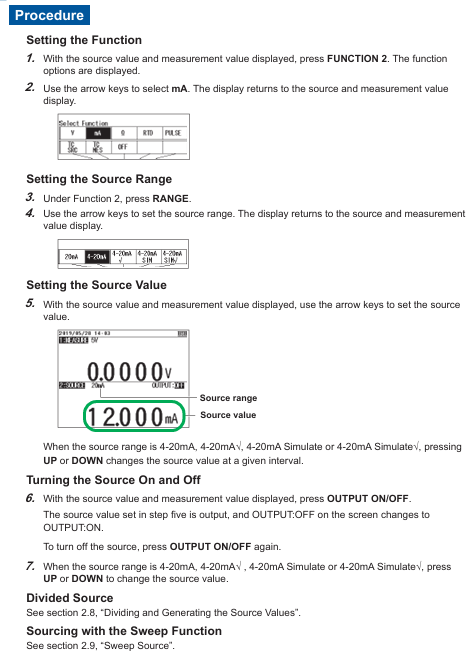
Function selection: Press the Function 2 key, use the directional keys to select mA (current), and press ENTER to confirm.

Range setting: Press the RANGE key, select 4-20mA (default 0%=4mA, 100%=20mA), and press ENTER to confirm.

Parameter adjustment: Set the output value (such as 8mA) through the numeric keys or UP/DOWN keys, press the OUTPUT ON/OFF key to start the output, and the screen will display “OUTPUT: ON”.

Scanning function (optional): If step output is required, enter SETUP → Sweep Setup → Step Sweep, set the interval time (such as 10 seconds) and repeat mode (ON/OFF), press the SWEEP key to start step scanning.

(2) Parameter measurement settings (Function 1)

Function selection: Press the Function 1 key, use the directional keys to select mA (current), and press ENTER to confirm.

Range setting: Press the RANGE button, select 50mA (covering 4-20mA measurement requirements), and press ENTER to confirm.

Loop power supply (optional): If measuring a two-wire transmitter, press the LOOP POWER button, and the instrument will output 24VDC loop power while measuring the transmitter output current.

Data reading: The screen displays the measured values in real-time, and pressing the AVERAGE key can view the 5 times moving average, maximum value, and minimum value.

2. Advanced scenario 1: Temperature calibration (thermocouple/RTD)

(1) Thermocouple temperature occurrence (simulating K-type thermocouple)

Function selection: Function 2 → TC SRC (thermocouple occurrence), select K type with the RANGE key, press ENTER to confirm.

Terminal settings: Go to SETUP → Temperature Setup → TC Terminal, select TC-B (banana plug, supports external reference compensation), set TC-B RJC to ON (enables reference compensation).

Temperature setting: Enter the target temperature (such as 200 ℃) through the numerical keys, press OUTPUT ON/OFF to start the output, and the screen will synchronously display the corresponding thermoelectric potential (such as 8.137mV, in accordance with ITS-90 standard).

(2) RTD temperature measurement (PT100)

Function selection: Function 1 → RTD, select PT100 (IEC 60751 standard, -200~800 ℃) with the RANGE key.

Wiring settings: Go to SETUP → Connection Method, select 3W (three wire system, eliminate lead resistance error).

Measurement execution: Connect the PT100 sensor (three wire system), the screen displays the measured temperature, and press the PLAY button to switch the displayed resistance value (e.g. 273.15 Ω corresponds to 0 ℃).

3. CA550 exclusive scenario: HART instrument calibration

Taking the “HART transmitter loop test” as an example, the operation process is as follows:

Communication settings: Press the COM key to enter on-site communication mode, select HART for the HART/BRAN soft key, and set 250 Ω ON/OFF to ON (providing HART communication impedance).

Device connection: Press the CONNECT Device button, and the instrument will automatically connect to the HART device with address 0. After successful connection, the device label and PV value will be displayed.

Loop test: Press the LOOP TEST button to set the target output current (such as 8mA), and the instrument controls the transmitter output through HART commands. At the same time, measure the actual output current and compare the deviation.

Data saving: Enter SETUP → Program Sweep, set calibration points (such as 4/8/12/16/20mA) and tolerances (such as 0.5%), perform scanning, and automatically save data (including device model, serial number, error, and grading results).

Data Management and Remote Control

1. Data storage and export

(1) CA500 Data Management

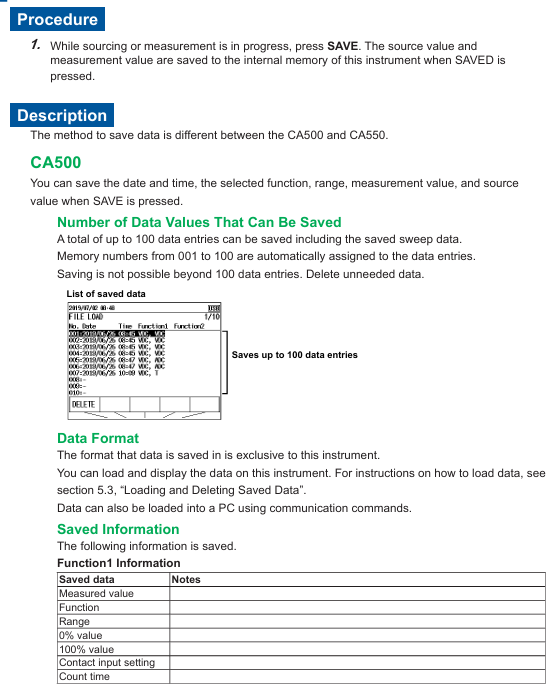
Manual save: During the measurement/occurrence process, press the SAVE button to automatically save the current time, function, range, measurement value/occurrence value, up to 100 records (memory numbers 001~100).

Data reading: Press the LOAD key, select the memory number, and press ENTER to view and save the data. CA500 only supports local viewing of the instrument and needs to be exported to the PC through USB commands.

(2) CA550 Data Management

Auto Save: Enable Data Save=ON during program scanning, and save data in CSV format to internal memory. The folder structure is Root → CalibrationData/WeekData/SaveData (manual save).

USB export: Connect to a PC via a USB cable, and the instrument is recognized as a USB storage device. Copy the CSV file directly to the PC and open it for analysis in Excel (supporting comma/semicolon/tab separation).

2. Remote control (USB communication)

Connect to PC through USB interface and use dedicated instructions to achieve remote control. The core instructions are as follows:

Signal generation: SD20.000 (set current generation value of 20.000mA), SO1 (start output).

Parameter measurement: OD0? (Query Function 1 measurement values), OS? (Query current instrument settings).

Data saving: TS (perform manual saving) OM1? (Read the saved data of memory number 1).

Equipment settings: IO1 (enable 250 Ω communication resistor), VO1 (start 24V circuit power supply).

Communication protocol: Following USB CDC (Communication Device Class), Yokogawa YKCDC USB Driver driver needs to be installed. The PC end sends commands through a serial port tool (such as PuTTY), with a default baud rate of 9600bps.

Precautions and Maintenance

1. Operational safety and accuracy assurance

Output protection: Avoid short circuits when outputting DC voltage in the 30V range, and avoid open circuits when outputting DC current. The instrument has built-in overvoltage/overcurrent protection, and the output needs to be restarted after triggering the protection.

Temperature effect: Preheat for 1 hour before temperature calibration to avoid the internal temperature rise of the instrument affecting the compensation accuracy of the reference end; The fluctuation of environmental temperature should be controlled within ± 1 ℃ (especially for IL measurement).

Wiring specifications: Three wire or four wire system should be preferred for resistance/RT D measurement to reduce lead resistance errors; Thermocouple wiring needs to distinguish between positive and negative poles (TC-B terminal: red positive, black negative).

2. Instrument maintenance

Battery management: The instrument supports dual power supply of battery and USB, and Power Select can set power priority; When the battery is low, the screen prompts that it needs to be charged in a timely manner (charging time is about 4 hours, full battery life is about 8 hours).

Memory cleaning: When CA550 data is full (250 CSV files), it is necessary to manually delete useless files or format the internal memory (MENU → File Format → QUICK, note: formatting will clear all data).

Calibration cycle: It is recommended to calibrate the instrument once a year. You can contact the authorized service center of Yokogawa or refer to the “User Calibration Manual” downloaded from the official website for self calibration (standard calibration source is required).

Common problems and troubleshooting

Possible causes and solutions for the fault phenomenon

After starting the output, there is no signal. The output terminal is not connected to the load, and the range setting is incorrect. Confirm that the load is within the allowable range (such as 4-20mA range load ≤ 20V), and select the correct range again

The temperature measurement deviation is large, and the reference compensation is not enabled. If the thermocouple type is selected incorrectly, enter the Temperature Setup and enable TC-B RJC. Confirm that the thermocouple type is consistent with the actual one (such as K type)

HART communication connection failure: 250 Ω resistor not enabled, device address non-zero. Press the COM key to enable 250 Ω. Confirm that the HART device address is 0 (default) and check the circuit wiring

USB cannot recognize that the driver is not installed and the USB cable has poor contact. Install YKCDC USB Driver, replace the USB cable and reconnect it

Data cannot be saved. Memory is full, file format is incorrect. Delete useless data or format memory. Confirm that the save format is CSV (CA550) or dedicated format (CA500)

YOKOGAWA AQ7420 High-Resolution Reflectometer

Instrument positioning and core applications

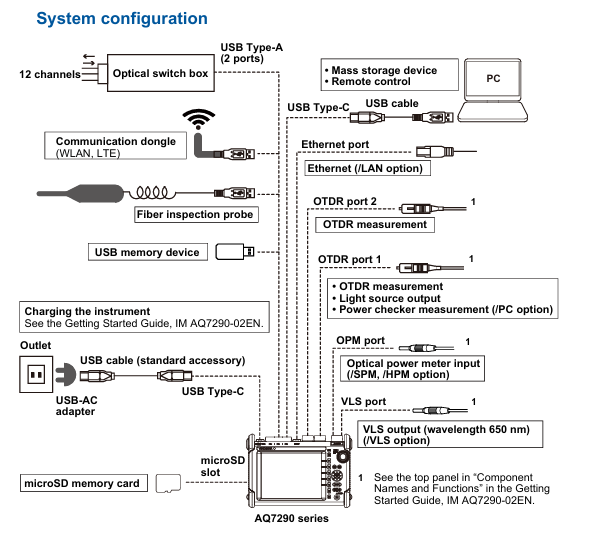
AQ7420 is a high-resolution reflectometer based on the principle of Time Domain Optical Coherence Tomography (TD-OCT) with built-in Michelson interferometer. Its core function is to measure three key parameters of optical devices through USB connection with the control PC

Optical Return Loss (RL): measures the return loss of fiber optic connectors, internal scratches, and device connection points, locates the position (with a maximum accuracy of 1 μ m) and intensity of reflection points.

Burnout Detection: Scan the distribution of return loss throughout the entire measurement range to identify abnormal reflection peaks such as fiber breakage and component defects.

Optical Insertion Loss (IL): measures the power attenuation of an optical signal passing through a Device Under Test (DUT) to evaluate the transmission performance of the device.

The instrument needs to be used in conjunction with a dedicated PC application, supporting local operation and TCP/IP remote control. The measurement results can be automatically graded, saved, and printed to meet the requirements of automated testing.

PC application installation and environmental requirements

1. Hardware and system requirements

Before installation, it is necessary to confirm that the control PC meets the following conditions, otherwise it may cause abnormal software operation or communication failure:

Project Requirements Explanation

The operating systems Windows 10 (32/64 bit) and Windows 11 do not support Windows XP/Vista/7/8 and tablet mode

Hardware configuration with at least 10MB of free hard disk space, USB interface free space for software installation and data storage, USB for instrument communication

Display resolution of 1024 × 768 pixels and above, 256 colors and above to ensure complete display of the operation interface, clear waveform diagram

The driver relies on NI-VISA 16.0 and above versions for communication between instruments and PCs, requiring VISA drivers. If not installed, it needs to be installed from the product CD first

2. Installation and uninstallation process

(1) Software installation steps

Preparation: Close the installed AQ7420 series software (if any) and log in to Windows with administrator privileges.

Start installation: Insert the product CD and run the path in English \ Application \ ARB-EDIT \ Setup. EXE (or enter the path through “Start Menu ->Run”).

Driver installation: After completing the PC application installation as prompted, the FTDI CDM driver installation window will automatically pop up. Click “Extract → Next → I agree → Finish” in sequence to complete the driver deployment.

Start verification: After installation is complete, add the “AQ7420Series-OLCR” program under “Start Menu → YOKOGAWA”, generate a shortcut icon on the desktop, double-click to start and enter the main interface.

(2) Uninstalling process (taking Windows 11 as an example)

Open “Control Panel ->Apps ->Installed Apps” and find “AQ7420Series’OLCR”.

Click on the icon on the right side of the program, select “Uninstall”, confirm and complete the uninstallation; If there are any remaining installation folders, they can be manually deleted (self built data needs to be backed up in advance).

(3) Connection exception handling

If the software prompts “Device Error” when starting, check:

Is the USB cable securely connected to the AQ7420 and PC.

Whether the VISA driver is installed properly (can be verified through NI MAX tool).

Whether the instrument power is turned on and whether the warm up is completed (it is recommended to perform reference measurements after preheating for 1 hour).

If you only want to view data without connecting the instrument, you can click “Viewer Mode” to enter the view mode.

Core functions and operating procedures

1. Preparation before measurement

(1) Instrument preheating and reference measurement

Preheating requirement: After starting up, the “Repeat Mode” should be turned on to run for 1 hour for preheating, to avoid temperature drift affecting measurement accuracy; After preheating, the reference measurement calibration system needs to be executed.

Reference measurement type:

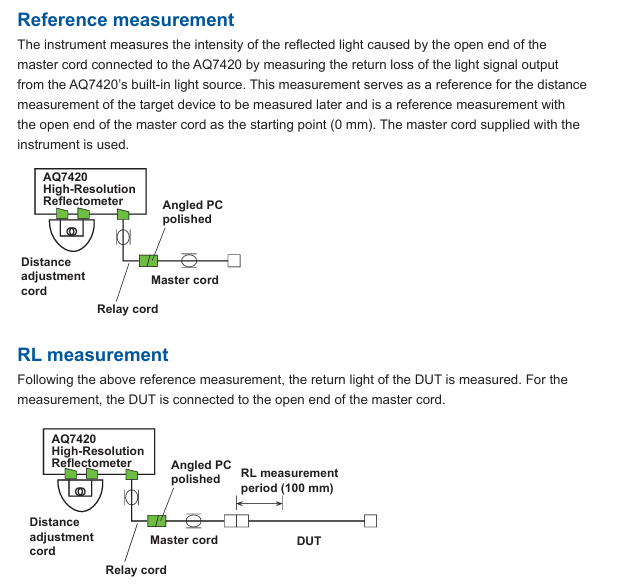
Detection REF: The reference measurement for RL and burn detection requires the use of a dedicated main cable (Master Cord), with the open end of the main cable as the measurement starting point (0mm), to record the reference reflection intensity.

IL REF: Reference measurement of insertion loss, connect the main cable directly to the optical input port of AQ740023 sensor head, and record the reference optical power.

All REF: Simultaneously execute Detection REF and IL REF, suitable for scenarios where RL/burn detection and IL need to be measured simultaneously.

(2) Key hardware connections

When measuring different parameters, cables need to be connected according to specifications. The core components include the main cable (standard accessories, can be purchased separately), distance adjustment cable, relay cable, FC/APC adapter, and AQ740023 sensor head. The example connections are as follows:

RL/burn detection: AQ7420 test port → relay cable → FC/APC adapter → main cable → device under test (DUT), the open end of the main cable should be kept away from reflective objects (at least 100mm).

IL measurement: AQ7420 test port → relay cable → FC/APC adapter → main cable → DUT → AQ740023 sensor head, ensure that the connector end face is clean (dirt can cause excessive splicing loss, prompt “Under Range”).

2. Measurement setup (Setup window)

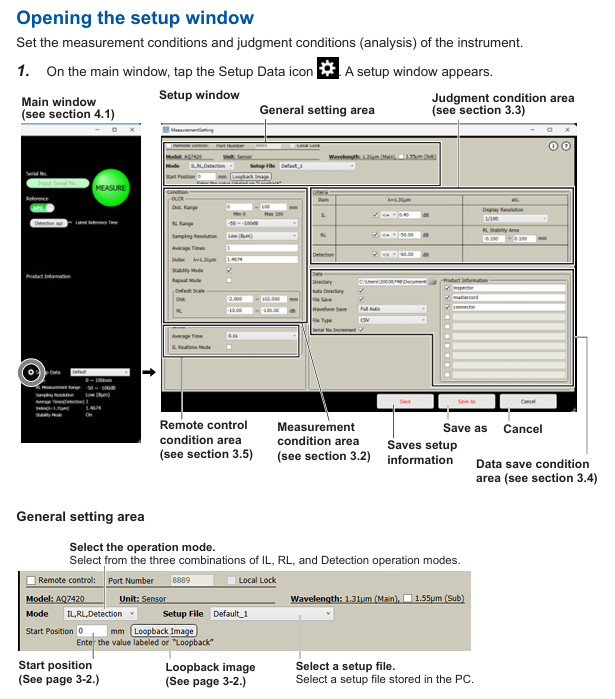
Open the settings window through the “Setup” button on the main interface, configure measurement conditions, grading standards, data saving, and remote control parameters. The core settings are as follows:

(1) General settings

Operation mode: Supports three combination modes – “IL, RL, Detection” (single measurement of three types of parameters), “Detection” (only RL and burn detection), and “IL” (only IL).

Wavelength selection: main wavelength of 1.31 μ m, sub wavelength of 1.55 μ m (dual wavelength data can be measured simultaneously when sub wavelength needs to be enabled).

Start Position: Used for long-distance cable adjustment (optional accessory), input the distance compensation value displayed in the “Loopback Image” window to correct the measurement starting point offset.

(2) Measurement conditions

Scope of Settings/Option Description

Measurement distance (Span) from 0 to 100mm. The measurement time increases with distance and defaults to 100mm

RL measurement range -14.7~-85dB/-50~-100dB. The former is suitable for strong reflection scenarios, while the latter is suitable for weak reflection (such as deep loss)

The higher the sampling resolution of High (1 μ m)/Middle (4 μ m)/Low (8 μ m), the higher the measurement accuracy but the longer the time consumption

The average number of detections (Detection) is 1-16 times, and the more detections, the lower the noise

The refractive index (Index) of 1.0000~2.0000 is set according to the refractive index of the measured fiber (such as SM fiber 1.4674), which affects the accuracy of distance measurement

After turning on/off the Stability Mode, it automatically corrects the length drift of the main cable caused by changes in ambient temperature (0mm correction)

(3) Grading criteria (Analysis)

Set the qualified threshold for each parameter, and automatically compare and grade after measurement (blue “Pass”, red “Fail”):

IL threshold: 0~40dB, supports setting display resolution (1/10~1/10000).

RL threshold: -120~-10dB, can limit the grading range (-10~110mm).

Burn detection threshold: -120~-10dB. Reflection peaks exceeding the threshold will be marked and counted on the waveform.

(4) Data saving settings

Storage path: Specify the data storage directory, enable “Auto Directory” to automatically create subfolders by “year/month/day”.

File type: Waveform data supports CSV (numerical), JPG/BMP (image), measurement data (PS format) includes grading results, peak positions, and RL values, and dual wavelength data is merged and saved.

Auto Save: After enabling “File Save”, save numerical data on a daily basis; The ‘Waveform Save’ supports modes such as’ NG only auto save ‘and’ fully auto save ‘to meet different testing needs.

3. Measurement operation process

(1) Reference measurement (taking PC polished DUT as an example)

RL/Burn Detection Reference (Detection REF):

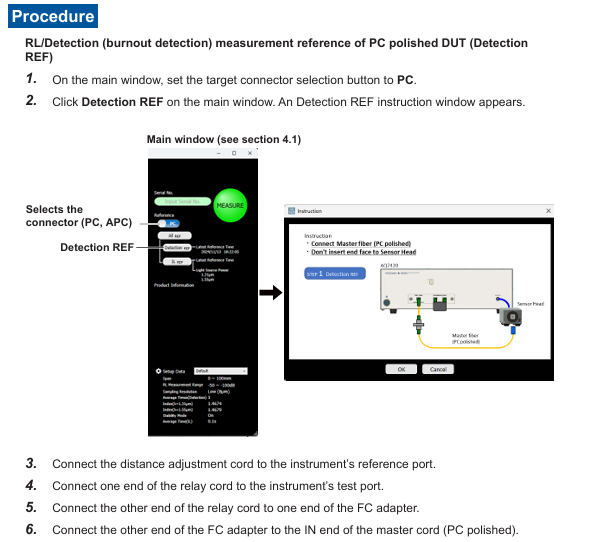
Set the “Target Connector Selection” on the main interface to “PC”, click on “Detection REF”, and follow the prompts to connect the distance adjustment cable, relay cable, FC adapter, and PC polishing main cable (open end).

Click “OK” to perform the reference measurement. After completion, the command window will automatically close and record the reference reflection value at the 0mm starting point.

IL Reference (IL REF):

Click on “IL REF” on the main interface and connect the open end of the main cable to the optical input port of the AQ740023 sensor head.

Click “OK” to perform reference measurement, record the reference optical power, and use it for subsequent IL calculation (power difference after DUT insertion).

(2) DUT measurement

RL/Burn Detection Measurement:

Disconnect the main cable from the open end, connect the DUT (ensure the connector is clean and scratch free), and enter the DUT serial number (optional, supports automatic increment).

Click the “MEASURE” button on the main interface, and the instrument will scan the distribution of return loss within the measurement range. After completion, the RL value will be output in the “Measurement Result Display Area”, and the waveform will display the burn detection peak.

IL measurement:

Connect the DUT in series between the main cable and AQ740023, click “Measure”, and the instrument calculates the insertion loss of the DUT (the difference between the reference power and the measured power), and the result is displayed in real time (enabling “IL Realtime Mode” for continuous measurement).

4. Data analysis (Analysis window)

After the measurement is completed, click the “Analysis Mode” button on the main interface to enter the analysis window, which supports waveform detail viewing and marking analysis:

Waveform interaction: Drag and drop the mouse to pan the waveform, right-click or scroll to zoom in and out of a specific area, and use “DEFILT SCALE” to restore the default display scale.

Marking operation:

Click the “Marker Add” button to add markers on the waveform, and check the distance (mm) and RL value (dB) of the marker position.

Support calculating the distance difference and RL difference between two markers (such as A-B distance difference and RL difference) to assist in locating defect spacing.

Peak recognition: Reflection peaks that exceed the classification threshold are automatically marked, and the table displays the peak position, RL value, and classification result, making it easy to quickly locate outliers.

5. Data storage and printing

(1) Data saving

Manual Save: Click “SAVE” in the analysis window, and save the waveform data (CSV/JPG/BMP) according to the set path. The file name should include the date, time, and serial number (such as “PW20241115_103040-AA1. csv”).

Auto Save: After enabling “Waveform Save”, the measurement is automatically saved upon completion (only data classified as Fail is saved in NG mode to save storage space).

(2) Report printing

Click the “Report” button on the main interface to open the Windows print settings window, select the printer or “PDF” (generate PDF file).

The printed content includes instrument model, measurement time, set parameters, IL/RL/Detection results, waveform diagrams, and peak data, which are automatically summarized into a single page report for easy testing and archiving.

Remote control

1. Preparation for remote control

Hardware connection: The control PC is connected to the remote server via LAN, and the instrument is connected to the control PC via USB, ensuring that the network port (default 8889) is not blocked by a firewall.

Software settings: Enable “Remote Setting” in the PC application “Setup window → Remote Conditions”, set the port number (consistent with the remote terminal), and enable “Local Key Display” to display the “Local Release Button” when connecting remotely.

2. Login and permission management

Login command: Remote terminal sends LOGIN<wsp>ID, Password. The default administrator ID/password is “reflectometer/reflectometer”. After successful login, control the PC to display the “Remote” icon.

Permission classification:

Administrator: Can modify ID/password (IDWrite: ADMin<wsp>new ID, new password), create users (up to 5).

User: Only performs basic operations such as measurement and query results, and does not have permission to modify system settings.

Logout command: Send: LOGOut to disconnect the remote connection, or click on the control PC “Local Key” to force a switch to local control.

3. Core control commands

Remote control is based on TCP/IP protocol, with commands divided into “program messages” (control) and “query messages” (read). Examples of key commands are as follows:

Command group command example function

MAIN group: MAIN: EASure start/stop measurement

: MAIN: REF: ILREf Perform IL reference measurement

:MAIN:RESUlt:JUDGe? Query the overall judgment level result (0=Fail, 1=Pass)

SETUp group: SETUp: MODE<wsp>0 Set the operation mode to “IL, RL, Detection”

SETUP: EASure: STARt<wsp>20 Set measurement starting position 20mm

General command * IDN? Query instrument information (manufacturer, model, serial number, firmware version)

*RST resets instrument settings and stops all processes

The command supports abbreviations (such as SETUp, which can be abbreviated as SETU), is not case sensitive, the response message is in ASCII format, and the error command returns “Invalid Command”.

YOKOGAWA FG410/FG420 arbitrary waveform editor

Software positioning and core purpose

FG410/FG420 Arbitrary Waveform Editor is a specialized software running on the Windows system. Its core function is to generate and edit arbitrary waveforms through graphical operations, and transmit waveform data and parameter configurations to FG410/FG420 instruments through USB interfaces, without the need to manually write instrument instructions. The main applications include:

Generate standard waveforms (sine, square, triangular, etc.) and custom waveforms (through numerical expressions, interpolation, parameter variables, etc.).

Edit waveforms (compression/expansion, stacking operations, cutting and pasting, etc.) to meet the requirements of complex signal simulation.

Synchronize waveform data and oscillator parameters (frequency, amplitude, offset, etc.) with FG410/FG420 to achieve rapid testing deployment.

oftware installation and environmental requirements

1. Hardware and system requirements

Before installation, it is necessary to confirm that the PC meets the following conditions, otherwise it may cause abnormal software operation:

Project Requirements Explanation

The operating systems Windows 10 (32/64 bit) and Windows 11 do not support Windows XP/Vista/7/8 and tablet mode

At least 10MB of free hard disk space for software installation and waveform file storage

Display resolution of 1024 × 768 pixels or above, 256 colors or above to ensure clear waveform display, and complete operation interface

Hardware interface USB interface is used for communication with FG410/FG420 instruments

Other CD drives (only required for installation), administrator privileges are required to install/uninstall software to avoid failure due to insufficient privileges

2. Installation process

(1) USB driver installation (essential steps)

The communication between the software and FG410/FG420 relies on the NI-VISA driver (verified to be compatible with NI-VISA version 16.0). If the PC does not have VISA environment installed, the driver needs to be installed first:

Insert the FG410/FG420 product CD and run the installation program in the “English \ Drivers \ NI-VISA” path on the CD.

Follow the on-screen prompts to complete the installation, restart the PC for the driver to take effect.

If using GPIB interface, first set the FG410/FG420 remote interface to USB, and then perform the above steps (refer to the FG410/FG420 Communication Interface Manual).

(2) Software installation

Insert the product CD and run “English \ Application \ ARB-EDIT \ Setup. EXE” (or enter the path through “Start Menu → Run”, such as “D: \ English \ Application \ ARB-EDIT \ Setup. EXE”, where “D:” is the CD drive letter).

Click “Next” and follow the prompts to complete the installation. The default installation path can be customized.

After installation, start the software through “Start Menu → YOKOGAWA → ARB-Edit”.

(3) Unloading process

Open “Control Panel ->Programs and Features” and find “ARB Edit Software”.

Right click and select ‘Uninstall’, follow the prompts to complete the operation; If there are any remaining installation folders, they can be manually deleted (self created files in the folder need to be backed up in advance).

Core functions and operating procedures

1. Software interface and basic operations

The main interface of the software is the “waveform display screen”, which includes a title bar, menu bar, toolbar, waveform display area, and parameter setting area. It supports the following basic operations:

Scaling and scrolling: Vertical scaling (1:1~1:256), horizontal scaling (1:1~1:128), after scaling, the waveform can be viewed in its entirety through the scrollbar.

Marking and Range Selection: Mark the waveform range using Marker A/B (supports numerical input positioning, with higher accuracy than mouse dragging) for editing, copying, and other operations (selection range is “Marker A ≤ X<Marker B”).

Clipboard operation: Supports Ctrl+C (copy), Ctrl+X (cut), Ctrl+V (paste), Ctrl+D (delete), waveform data is temporarily stored on the clipboard in 16 bit integer format (-32768~+32767), and can interact with other applications such as Notepad and Excel.

Revoke/Redo: Use “Edit → undo” (Ctrl+U) to undo the previous operation, and “Edit → Redo” to restore the undo operation. Only single undo/redo is supported.

2. Waveform generation function

The software supports 5 core waveform generation methods, covering requirements from standard signals to custom complex signals:

(1) Standard waveform generation

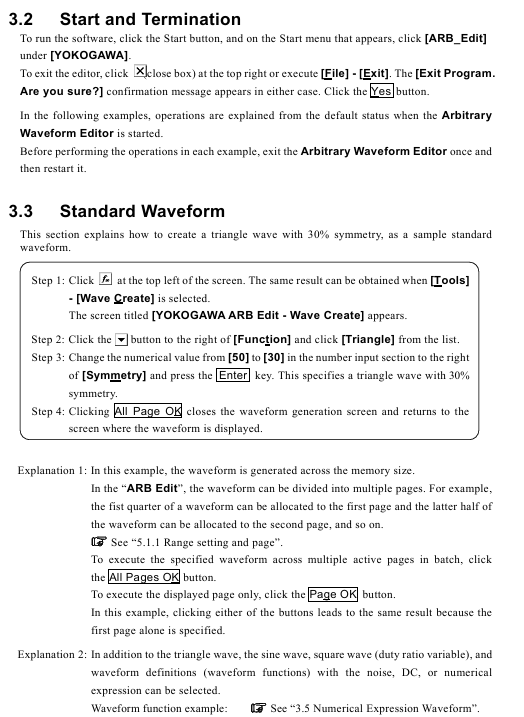
Generate standard waveforms such as sine, square, triangular, noise, DC, etc. through the “waveform generation screen”. The operation steps are as follows:

Click the “fx” button on the toolbar (or “Tools → Wave Create”) to open the waveform generation screen.

Select the waveform type (such as “Triangle”) from the “Function” drop-down menu.

Set parameters (such as setting the symmetry of triangular wave “Symmetry” to 30% and the duty cycle of square wave “DutyLatio” to 40%).

Click on “Page OK” (only for the current page) or “All Page OK” to generate a waveform and return to the main interface.

Key parameters: amplitude (peak to peak), period, phase, DC offset, etc. When the parameters exceed ± full range, the waveform will be automatically truncated.

(2) Numerical expression waveform generation

Customize waveforms through mathematical expressions (such as superimposed harmonics, damping waves), supporting built-in constants (π, light speed, Planck constant, etc.) and functions (sin, cos, exp, log, etc.). The operation steps are as follows:

Open the waveform generation screen, select “Function” and choose “Waveform Function”.

Define constants in the “Constant” column (such as s=2 * pi; Map the X-axis from 0 to 1 to a period of 2 π.

Enter an expression in the “Y=” column (such as sin (x * s)+sin (x * s * 3)/3+sin (x * s * 5)/5 to generate a square wave containing 3rd and 5th harmonics).

Click “Compute” to preview the waveform, confirm and click “All Page OK” to generate.

Example: Generate a sine wave with a period of 1ms (X-axis is set as “Time” unit from 0 to 1ms), expressed as 10 * sin (x * 2 * pi/1e-3) (amplitude 10Vp-p).

(3) Interpolation waveform generation

Generate smooth waveforms (such as pulses and custom curves) using “control points” and interpolation algorithms (linear, spline, continuous spline). The steps are as follows:

Click the “Interpolation” button on the toolbar (or “Tools → Interpolate”) to open the interpolation editing screen.

Add/delete control points in the waveform display area using the mouse (or directly enter X/Y values), such as setting (0.2,0), (0.5,1), (0.8,0).

Choose the interpolation method (Linear interpolation, Spline spline interpolation, Cont Spline continuous spline interpolation, continuous spline can achieve smooth connection at the beginning and end).

Click ‘Exit’ to return to the main interface and generate an interpolated waveform.

(4) Parameter variable waveform (PWF) generation

Quickly generate waveforms by presetting 25 waveform templates (such as amplitude modulated sine waves, damped oscillations, trapezoidal waves) and adjusting parameters. The operation steps are as follows:

Click the “PWF” button on the toolbar (or “Tools → PWF”) to open the PWF screen.

Select a template from the “Function” dropdown menu (such as “Damped Oscillation”).

Set parameters (such as “OscFreq” oscillation frequency of 10Hz, “DampTC” damping time constant of 10ms), support slider adjustment for real-time preview.

Click “OK” to generate the waveform and return to the main interface.

Supporting waveform types: including steady-state sine wave group (such as unbalanced sine wave, clipped sine wave), transient sine wave group (such as conduction angle control sine wave), pulse group, transient response group (such as exponential rise/fall), surge group, etc.

(5) Waveform superposition operation

Perform addition, subtraction, multiplication, and division operations (such as adding noise to sine waves) on two waveforms through the “waveform to waveform operation screen”. The operation steps are as follows:

Use Marker A/B to select the calculation range on the main interface.

Click the “Calculate” button on the toolbar (or “Tools → Operate”) to open the calculation screen.

Select the operation object (“Created Waveform” generates a new waveform, “Clip Board” clipboard waveform).

Select the operation type (+//*//), click “=” to preview the result, confirm and click “OK” to apply.

Attention: It is recommended to set the Y-axis unit to “User Unit (-1~+1)” to avoid truncation of the calculation result beyond the range.

3. Waveform editing function

(1) Waveform compression/expansion

Adjust the horizontal (time axis) or vertical (amplitude axis) size of the waveform through “compress/expand screen”. The operation steps are as follows:

Select the waveform range (Marker A/B) and click the “Compress/Expand” button on the toolbar (or “Tools → Compress/Decompress”).

Horizontal adjustment: Set “Start X” and “End X” (such as compressing a 4-period sine wave to a range of 0-0.25 to generate a burst waveform).

Vertical adjustment: Adjust by “Max/Min” (set maximum/minimum value) or “Amp/Off” (set amplitude/offset), such as expanding a triangular wave vertically into a trapezoidal wave.

Click “OK” to apply adjustments. “Fit Length” will expand the selected range to full screen, and “Fit Amplitude” will expand to the maximum amplitude.

(2) Multi page waveform editing

Supports dividing waveforms into up to 200 pages, with independent range and waveform settings for each page, suitable for segmenting complex signals (such as the first half sine wave and the second half pulse):

On the waveform generation screen, set the current page range (such as 0-0.5 on page 1 and 0.5-1 on page 2) using “Area (X)”.

Select waveform type and parameters for each page, set “Effect” to “K Effect” to enable the page, and disable “No Effect”.

Click “All Page OK” to generate multi page waveforms, and switch between page numbers in the toolbar to view them.

4. Waveform and parameter transmission

Synchronize waveform data and oscillator parameters with FG410/FG420 instrument through the “System Settings Screen”. The operation steps are as follows:

Click on “Setup → Setup” to open the system settings screen (including 4 tabs: System/Unit/Waveform/Oscillator).

Basic Settings (System tab):

Select the model (FG410/FG420), interface (USB (TMC)), and instrument serial number (automatically recognizes connected devices).

Axis unit setting (Unit tab):

X-axis: Supports “Address”, “Time” (time, linked with oscillator cycle), and “User Unit” (customizable, such as 0~360 °).

Y-axis: Supports “Data” (16 bit data), “Voltage” (voltage, linked with oscillator amplitude), and “User Unit” (customized, such as -1~1).

Waveform memory settings (Waveform tab):

Select the memory number (1~128, 0 is non transferable for editing memory), transfer format (“Array Format” array format, “Control Point Format” control point format, the latter has a smaller data volume).

Click “Transfer Data” to transfer the waveform to the instrument, and “Read Data” to read the waveform from the instrument.

Oscillator settings (Oscillator tab):

Set parameters such as channel (only FG420 supports dual channels), output switch (ON/OFF), frequency/period, amplitude, DC offset, etc.

Click on ‘Oscillator Setup’ to transfer the parameters to the instrument and ensure that the waveform output meets the requirements.

Attention: FG410/FG420 memory 1-128 is non-volatile, and data will not be lost when power is turned off after transmission; Dual channels need to be transmitted to different memory numbers to avoid waveform coverage.

5. File operation and printing

(1) File format and saving/reading

The software supports 6 file formats to meet the needs of different scenarios:

Characteristics of file type extension usage

Dedicated binary file. wdb saves waveform data, instrument settings, and small axis unit volume, containing complete information that can only be recognized by software

Text data file. txt saves waveform data (1 line, 1 16 bit integer), which can be opened in Notepad/Excel for easy processing by other applications

The waveform function file. wfn saves standard waveform parameters and numerical expressions in text format, which can be edited and re read to generate waveforms

Control point file. prn saves interpolated control points (X/Y data) in text format for reusing interpolated waveform settings

PWF parameter file. pwf saves PWF waveform templates and parameter text formats, allowing for quick access to commonly used PWF settings

The system settings file. ocb saves instrument models, interfaces, axis units, and other binary formats, which are only recognized by software and used for quick recovery of settings

Operation steps: Select the format and path through “File → Save” and “File → Open”, and the extension will be automatically added when saving.

(2) Print

Support printing the current waveform (without grid) or setting interface (such as waveform generation parameters, PWF settings), operation steps:

Open the interface to be printed (such as waveform display screen, PWF screen).

Click “File → Print” (Ctrl+P) to set the page margins (top/bottom/left), printer, and font.

Click “OK” to print. Waveform printing only displays the current view range, and the zoom needs to be adjusted in advance.

Troubleshooting and Maintenance

1. Common errors and solutions

The possible errors and countermeasures during software operation are as follows:

Solution to Error Information Causes

Memory Allocation Failed. Insufficient memory allocation during startup. Close other applications and restart software; If it occurs frequently, check if the system memory is sufficient

No Spline point interpolation generates waveforms without setting control points. Add at least 2 control points before performing interpolation

File Read/Write error: File read/write failure (e.g. path does not exist, insufficient permissions). Check if the save path exists and run the software with administrator privileges; Damaged files need to be recreated

No listeners on the FACE USB not connected to the instrument or driver not installed. Check the USB connection, reinstall the NI-VISA driver, and restart the instrument and software

Transfer is interrupted. If the instrument malfunctions (such as insufficient memory) and prompts “Out of memory”, delete the useless waveforms in the instrument; Otherwise, restart the instrument and retry

Illegal Font Size When printing, adjust the font size in the print settings (if it is set to 12) to avoid exceeding the range

2. Software maintenance

CD maintenance: Store in a cool and dry place, avoid direct sunlight and dust; Wipe with a soft dry cloth when dirty, and prohibit the use of solvents such as benzene; Use a marker pen to write on the label surface to avoid scratches from hard objects.

Version check: Check the software version (such as Version 1.0.0) through “Help → About” to confirm if it is the latest version. If an update is needed, contact the Yokogawa distributor.

CD damage replacement: If the installation CD is damaged, you can contact Yokogawa to purchase a new CD (for a fee) and provide the product model and purchase certificate.

Yokogawa Model 701905 Conversion Cable

Product positioning and core applications

Model 701905 is a Yokogawa specific conversion cable that is only compatible with Yokogawa differential probes (models 701977 or 701978). Its core function is to convert the metal BNC connector of the differential probe into an insulated BNC connector, thereby achieving measurement in the following scenarios:

The differential probe could originally be directly connected to a Yokogawa oscilloscope or non insulated module, but after conversion from 701905, it can be used in conjunction with Yokogawa insulated modules.

After adapting to the insulation module, it can expand measurement capabilities, support signal measurement with higher voltage and faster sampling rate, and is suitable for insulation measurement scenarios such as power electronics and industrial control.

Packaging and accessory inspection

After opening the box, it is necessary to confirm that the following information is intact. If there are any model errors, missing accessories, or damaged appearance, please contact the Yokogawa dealer immediately:

Product/Document Name Model/Manual Number Quantity/Purpose

Conversion cable 701905 1 piece (core product)

Conversion Cable User Manual (English) IM 701905-01Z2 Volume 1 (this manual)

Chinese specific document IM 701905-92Z1 Volume 1 (Instructions for the Chinese market)

Global Contact List PIM 113-01Z2 Volume 1 (Yokogawa Global Office Contact Information)

Safety regulations

1. Core safety warning (to avoid electric shock/equipment damage)

Specific limitation: It can only be used in conjunction with Yokogawa differential probes (701977/701978) and Yokogawa insulation modules. It is prohibited to use it for other brands of equipment or non specified scenarios, otherwise it may cause high voltage hazards or equipment failures.

Grounding requirement: The grounding plug (4 Φ) of the cable must be connected to the functional grounding terminal of the measuring instrument. Failure to ground may result in measurement errors or safety hazards.

Prohibition of direct connection: Differential probes (701977/701978) can be directly connected to non insulated modules of Yokogawa, but direct connection to insulated modules is prohibited – otherwise high voltage may be generated between the input terminals of the differential probe, causing electric shock or equipment damage.

Connector matching: Only insulated BNC connectors of 701905 can be connected to insulated BNC connectors of insulated modules. It is forbidden to connect metal BNC connectors of non insulated modules to avoid damaging the insulated BNC interface.

2. Operation safety rules

Stacking restriction of grounding plugs: Multiple grounding plugs can be stacked through a “stacking connector (4 Φ)”, but up to 4 can be stacked. Excessive stacking can cause load on the terminals, resulting in poor contact or terminal failure.

Operation sequence: Before connecting/disassembling, the power supply of the measuring instrument must be turned off to avoid short circuits or electric shocks caused by live operation; After the connection is complete, turn on the power to ensure safe wiring.

Pre reading of documents: Before use, it is necessary to read through the user manuals of the differential probe, measuring instrument, and insulation module, familiarize oneself with the rated parameters and operating limitations of each device.

Product Structure and Connection Process

1. Component name and function

Component Name Location (Differential Probe Side/Measuring Instrument Side) Function

Connect the metal BNC interface of the differential probe (701977/701978) on the differential probe side of the metal BNC connector to transmit signals

Insulated BNC connector connects the measuring instrument side to the insulated BNC interface of the insulation module on the measuring instrument, achieving insulation signal transmission

The signal transmission carrier in the middle part of the cable body includes shielding design to reduce interference

Grounding cable (GND cable): Connect the grounding plug and stacking connector on the measuring instrument side, with a length of approximately 300mm (including the plug)

Insert the grounding plug (4 Φ) into the functional grounding terminal of the measuring instrument on the measuring instrument side to ensure grounding safety

Stacking connector (4 Φ) next to the grounding plug is used to stack multiple grounding plugs (up to 4), suitable for multi probe scenarios

Pay attention to the safety warning information marked on the cable body of the solution tag, reminding users to follow the operating procedures

2. Standard connection process (single probe scenario)

Power off preparation: Turn off the power supply of the measuring instrument, ensure that all equipment is in a power-off state, and avoid live wiring.

Grounding connection: Insert the grounding plug of 701905 into the functional grounding terminal of the measuring instrument to ensure reliable grounding.

Connect the insulation module: Insert the insulation BNC connector of 701905 into the insulation BNC interface of the installed insulation module on the measuring instrument, and tighten it to avoid poor contact.

Connect differential probe: Insert the metal BNC connector of differential probe (701977/701978) into the metal BNC connector of 701905 to ensure smooth signal transmission path.

Power supply connection: Connect the power terminal of the differential probe to the probe power terminal of the measuring instrument (the measuring instrument needs to have the “probe power output” option); If the instrument does not have this terminal, a power supply (model 701934) sold separately by Yokogawa can be used for power supply.

Power on test: After confirming that all connections are correct, turn on the power of the measuring instrument and check if the signal transmission is normal.

3. Multi probe scenario (up to 4 differential probes)

If multiple differential probes need to be used simultaneously, repeat steps 2-5 above:

Each differential probe needs to be paired with one 701905 conversion cable.

The grounding plug is stacked through a “stacking connector” (up to 4) to ensure that each grounding plug is reliably grounded.

Technical specifications

Specification project specific parameter description

The rated voltage of 42 V needs to be used for a long time within the rated voltage range. Overvoltage may damage the insulation layer of the cable

The working temperature range of 5~40 ℃ may cause a decrease in cable performance and unstable signal transmission beyond this range

The total length of the cable is about 310 mm, including connectors at both ends, suitable for the wiring requirements of conventional measurement scenarios

The length of the grounding cable is about 300 mm, including the grounding plug, to ensure flexible wiring between the grounding terminal and the insulation module

Weight (including plug) about 50g, lightweight design reduces cable load during measurement, easy to operate

Maintenance and disposal

1. Daily maintenance

Appearance inspection: Before use, check whether the cable insulation layer is damaged, whether the connector is corroded or deformed. If there is any damage, stop using and contact Yokogawa for repair or replacement.

Cleaning: Use only a dry soft cloth to wipe the surface of the cable. Do not use solvents, alcohol, or abrasives to avoid damaging the insulation layer or connector coating.

Storage: When idle, the cable should be placed in a dry and ventilated environment, avoiding direct sunlight, high temperature, or humidity to prevent insulation layer aging.

2. Disposal of waste

When discarding, it is necessary to follow local laws and regulations, classify and dispose of cables and other electronic waste, and prohibit arbitrary disposal.

If the cable contains metal components (such as BNC connectors, grounding plugs), metal recycling can be carried out according to local regulations to reduce environmental impact.

image.png

YOKOGAWA MY600 Digital Insulation Resistance Tester

Product positioning and core functions

MY600 is a compact digital insulation resistance tester designed to measure the insulation resistance of electrical equipment or circuits. It supports voltage measurement (AC/DC) and low resistance on/off inspection, and is portable, high-precision, and adaptable to multiple scenarios. It is widely used in fields such as power equipment maintenance, electrical installation acceptance, and industrial circuit testing.

Packaging and Accessories

1. Standard accessories (included with the product)

After opening the box, it is necessary to confirm that the following accessories are intact. If they are missing or damaged, please contact the Yokogawa distributor:

Accessory Name Model/Part Number Quantity Usage

Portable case 93045 1 for storing instruments and accessories, easy to carry

Line probe with remote switch 98008 1 connected to LINE terminal for line side measurement

Grounding probe group 98009 1 is connected to the EARTH terminal for measuring the grounding side

Shoulder strap 99018 1 hanging instrument, supports dual hand operation

Alkaline dry battery -4 instrument power supply (AA alkaline battery recommended)

User manual set IM MY600-01EN/92Z1/00C01C01-01Z2/PIM113-01Z2, each containing multilingual instructions and global contact information

2. Optional accessories (to be purchased separately)

According to the requirements of the measurement scenario, it is necessary to ensure that the accessories meet the rated parameters of the instrument:

Accessory Name Model/Part Number Usage

USB communication adapter 91030 is used to connect to a PC and transfer measurement data from memory

Hook probe tip 99012 replaces standard probe, suitable for special wiring scenarios

Long probe tip 99013 deep into narrow spaces for measurement, expanding measurement range

Safety regulations

1. Core safety warning (to avoid electric shock/equipment damage)

Laser and high voltage protection: When measuring insulation resistance, there is high voltage at the tip of the probe, and touching the probe or the tested circuit is prohibited; After measurement, wait for automatic discharge to complete(“ ⚠️”  Symbol flashing+buzzing), then touch the circuit.

Measurement category restriction: The rated measurement category of the instrument is CAT III 600V, and it is prohibited to use it for CAT IV or main power circuits exceeding 600V; When the probe is paired with different accessories, the category is different (for example, 98008 with insulation cap is CAT III 600V, and without cap is CAT II 1000V).

Requirements for the tested equipment: Before measurement, the power supply of the DUT must be cut off, and the voltage measurement function must be used to confirm that there is no power before starting; Do not measure live circuits to avoid instrument damage or electric shock.

Equipment status check: If the instrument casing is damaged, the probe cable is exposed, or the battery compartment is damp, use is prohibited; After falling or colliding, it is necessary to contact the dealer for maintenance to avoid insulation protection failure.

2. Operation safety rules

Battery replacement: Before replacing, power off and remove the probe. It is forbidden to open the battery compartment during measurement; New batteries of the same type should be used to avoid mixing old and new/different models.

Environmental restrictions: Do not use in flammable gas, humid (with condensation) or outdoor rainy environments; Working temperature range -10~+50 ℃, storage temperature -20~+60 ℃, avoid direct sunlight.

Probe usage: Only Yokogawa designated probes can be used, damaged or aged probes should be replaced in a timely manner; Before connecting/disassembling the probe, it is necessary to disconnect it from the device being tested.

Core functions and operating procedures

1. Measurement mode and parameters

The instrument supports three core measurement modes, and the parameters and applicable scenarios for each mode are as follows:

(1) Voltage measurement (AC/DC automatic detection)

Range and Range: Automatic range (300.0V/600V), measurement range AC 2.0~600V (45~65Hz), DC ± 2.0~± 600V, over range display “>629V” (AC/positive DC) or “<-629V” (negative DC).

Accuracy: ± 1% reading ± 4 digits (23 ℃± 5 ℃, RH ≤ 80%), AC detected using true RMS, non sinusoidal (CF<2.5) requires an additional ± 1% error.

Operation steps:

Connect the line probe (98008) to the LINE terminal, and connect the ground probe (98009) to the EARTH terminal.

Set the range switch to “V/Ω” and connect the probes to the line side and ground side of the tested circuit.

No need to press the measurement switch, the instrument automatically detects AC/DC and displays the value (triggering a live warning when ≥ 30V:“ ⚠️”  Blinking and buzzing.

(2) Insulation resistance measurement (core function)

Rated voltage and range: Supports six rated voltages of 50V/100V/125V/250V/500V/1000V, with automatic range switching (such as 1000V range of 4~4000M Ω), and a fixed value displayed for exceeding the range (such as>4199M Ω).

Key parameters:

Open circuit voltage: 100-110% of rated voltage.

Short circuit current: ≤ 1.5mA (1000V range) to ensure measurement safety.

Accuracy: First effective range (such as 1000V range 0.100~1000M Ω) ± 2% reading ± 2 digits; Second effective range (1001~4000M Ω) ± 5% reading.

Featured Features:

Automatic discharge: After measurement, keep the probe connected, and the instrument will automatically release the charge of the measured capacitor load. Before the discharge is completed“ ⚠️”  Flashing and buzzing.

Pass/Tail judgment: A reference value (0.001~4199M Ω) can be set. When the measured value is ≥ the reference value, the backlight flashes green and “PASS”, otherwise it flashes red and “FAIL”.

DAR/PI calculation: Automatically calculate the dielectric loss absorption ratio (DAR=1 minute value/15 second value) and polarization index (PI=10 minute value/1 minute value), ranging from 0.00 to 9.99, with “>9.99” displayed if out of range.

Operation steps:

Connect the probe, confirm that the tested device is powered off, and verify that there is no power using voltage measurement.

Turn the range switch to the corresponding rated voltage level (long press SELECT to switch between 125V/100V levels).

Connect the probe to the device under test, and simultaneously press the instrument’s “measurement switch” and the probe’s “remote switch” to start measuring (continuous measurement requires locking the measurement switch).

After the measurement is completed, wait for the automatic discharge to end before removing the probe.

(3) Low resistance measurement (on-off check)

Range and Range: Automatic Range (40.00 Ω/400.0 Ω/4000 Ω), Measurement Range 0.00-4199 Ω, Over Range Display “>4199 Ω”.

Key parameters:

Open circuit voltage: DC 4~6.9V.

Measurement current: below 2 Ω ≥ 200mA, when the current is ≥ 200mA, a buzzer will sound to indicate on/off.

Accuracy: 0.20-4000 Ω± 2.5% reading ± 8 digits; 0~0.19 Ω± 8 digits (0 Ω calibration needs to be performed first).

Featured feature: 0 Ω calibration (can counteract probe and fuse resistance, up to 3 Ω), ensuring low resistance measurement accuracy.

Operation steps:

Turn the range switch to “V/Ω” and press SELECT to switch to low resistance mode.

Short circuit the probe, long press the “0 Ω ADJ” button to perform calibration (display “0.00 Ω” and light up the “0 Ω” indicator light).

Connect the probe to the tested circuit, press the measurement switch, and display the resistance value (beep when the current is ≥ 200mA).

2. Auxiliary functions

Backlight and LED lights: The illuminance sensor automatically detects the ambient brightness, automatically turns on the backlight and measurement point LED lights when dim, and automatically turns off after 2 minutes of inactivity; It can also be manually set to be normally off.

Automatic shutdown: Automatic shutdown after 10 minutes of inactivity (disabled during measurement or when the measurement switch is locked), with a warning beep before shutdown.

Clock settings: Year/month/day/hour/minute can be set, measurement data is automatically associated with timestamps, and there is a built-in lithium battery backup clock (with a lifespan of about 10 years).

Memory function: can store 1000 sets of measurement data (voltage/insulation resistance/low resistance), including DAR/PI, time, range and other information; Support data viewing and deletion (single/all), and transfer to PC through USB adapter.

System Settings and Data Management

1. Function configuration (long press SETUP to enter configuration mode)

Pass/Tail reference value: Set the judgment threshold for each voltage level, supporting preset values (such as default 0.5M Ω for 500V level) or custom values (0.001-4199M Ω).

Backlight/LED lights: Set to “ON” (automatic start stop) or “OFF” (normally off).

Buzzer: Set “ON” (live warning, discharge, on/off prompt) or “OFF” (turn off all beeps).

Clock calibration: Adjust the year/month/day/hour/minute to ensure accurate data timestamps.

2. Data management

Storage: When holding the measurement value, press the MemoRY button briefly to set the site number (SITE No.1/2, 0~99) and data number (automatically increasing) to complete the storage.

View: Press and hold the Memory button during standby time, select the data number using the directional keys, and view the measured values and station information.

Delete: When viewing data, select the number (or “ALL”) and press ENTER to confirm the deletion (single or all).

Transmission: Connect to the PC via USB communication adapter (91030), install the driver, and export data using commands (refer to IM 91030-01EN manual).

Maintenance and repair

1. Daily maintenance

Battery management: When the battery level is low, the “battery icon” displays “empty” and needs to be replaced in a timely manner (4 AA alkaline batteries); Long term disuse requires removing the battery to avoid leaking and damaging the instrument.

Cleaning: Wipe the outer shell with a dry soft cloth, and do not use abrasives or solvents; The surface of the illuminance sensor needs to be kept clean to avoid affecting the automatic backlight/LED function.

Calibration cycle: It is recommended to calibrate once a year to ensure measurement accuracy. Calibration must be performed by Yokogawa certified personnel.

2. Fault handling and maintenance

Frequently Asked Questions:

Inaccurate measurement value: Check the battery level, probe connection, and perform 0 Ω calibration again for low resistance measurement.

Backlight/LED not on: Clean the illuminance sensor or manually confirm that the configuration mode is set to “ON”.

Unable to store data: Memory is full (old data needs to be deleted), or the operation was not in the ‘measurement value hold’ state.

Maintenance restrictions: It is prohibited to disassemble the instrument by oneself (only battery replacement can open the battery compartment). For internal faults, please contact the Yokogawa dealer. Repairs involving safety insulation components require professional operation.

3. Disposal and Compliance

Equipment disposal: When disposing of equipment, local laws and regulations must be followed, and batteries (alkaline batteries and built-in lithium batteries) must be separated and classified for disposal.

Environmental Compliance: Compliant with EU RoHS Directive, WEEE Directive (prohibiting the mixing of household waste in EU regions), and EU Battery Directive (batteries must be recycled separately).

Product Specifications

Appearance dimensions: 156 (W) × 46 (H) × 97 (D) mm, weight approximately 490g (including battery).

Factory default settings: such as Pass/Tail reference values for each voltage level (0.5M Ω for 500V level), default “ON” for backlight/buzzer, default clearing of memory, etc.

YOKOGAWA AQ7290 Series Optical Time Domain Reflectometer

Product basic information

1. Product positioning and core applications

The AQ7290 series OTDR is a professional equipment used for fiber link detection. Its core function is to analyze the transmission loss, joint loss, fault location (such as breakage, bending) and other parameters of the fiber by emitting optical pulses and receiving reflected light. It is mainly used for:

Access network: Fiber optic installation and maintenance between telecommunications operators and users (mainly single-mode fiber optic).

Enterprise network: Fiber optic detection of internal communication networks within enterprises or buildings.

Long distance network: troubleshooting and performance monitoring of backbone fiber optic links between telecommunications operators.

2. Manual system and version information

Supporting documents: including Chinese specific documents (IM 739883-92Z1), European language safety manual (IM 00C01C01-01Z1), global contact list (PIM 113-01Z2), and communication interface manual (IM AQ7290-17EN) stored in device memory, which needs to be downloaded to PC for viewing.

Language code: In the manual number, “EN” represents English, “Z1” represents Chinese and other languages. Users can access it through the Yokogawa Customer Portal( https://myportal.yokogawa.com/ )Obtain the corresponding version.

Version iteration: The current version is the first edition in April 2025, and the content may change without prior notice due to product feature upgrades. The latest version should refer to the official website.

Trademark Statement: Mentioning brand trademarks such as Microsoft, Apple, Google, etc., omitted in the manual ®  The TM symbol and other brand names belong to their respective holders.

Core functions and operating procedures

1. Basic measurement function (OTDR core)

(1) Optical pulse measurement mode

Support two core measurement modes to meet different scenario requirements:

Measurement mode, functional characteristics, applicable scenarios

Average measurement (TRACE/MAP mode): Take the average of multiple measurements to reduce noise interference; Automatically analyze events after measurement, and switch between “TRACE” or “MAP” to accurately detect weak events (such as low loss connectors) and generate formal detection reports

Real time measurement (only available in TRACE mode) updates waveforms in real-time, supports dynamic adjustment of parameters such as wavelength and distance range, real-time monitoring during fiber installation, and quick troubleshooting of obvious faults

(2) Key measurement parameter settings

Wavelength: Different models support 1310nm, 1550nm, 1625nm, 1650nm, etc. For example, AQ7293F supports 1310/1550/1650nm, and AQ7293H supports 1310/1550/1625nm.

Distance range: Supports AUTO (automatic matching of fiber length) and manual setting of 100m-512km. It is necessary to select a range greater than the actual length of the fiber to ensure complete measurement.

Pulse width: Short pulses (3ns-30ns) are suitable for close range high-resolution measurement, while long pulses (1 μ s-20 μ s) are suitable for long-distance measurement, and can be manually set or automatically matched with a distance range.

Average frequency/duration: The average frequency supports 2 ¹⁰ -2 ² ⁰ times, with a duration of 5-30 minutes. The larger the frequency/duration, the higher the measurement accuracy but the longer the time consumption.

(3) Event analysis function

Automatically detect “events” (such as joints, fractures, bends) in fiber optic links and calculate key parameters:

Event types: including joint loss, reflection loss, bending loss, splitter loss, fiber optic endpoint (Fresnel reflection), etc., visually displayed in MAP mode through icons (such as “⊡” for joints and “■” for endpoints).

Analysis parameters: The joint loss threshold (0.01-9.99dB), reflection loss threshold (20-70dB), and fiber endpoint threshold (3-65dB) can be set. Events exceeding the threshold will be marked as “fault”.

Manual adjustment: supports inserting/deleting events, editing event marker positions, and solving noise misjudgment or weak event missed detection problems.

2. Utility function

The device supports parallel use of multiple tools and can synchronously perform other detections during OTDR measurement, improving work efficiency:

Key parameters/options for the core purpose of tool functionality

Light Source fiber loss measurement, fiber identification output wavelength consistent with OTDR (such as 1310/1550nm), supports continuous light (CW) or modulated light (270Hz/1kHz/2kHz)

Visible light source (/VLS option) visually locates fiber breakpoints, checks multi-core fiber core sequence, fixed wavelength 650nm, supports CW or 2Hz modulation light

Optical power meter (/SPM//HPM option) measures optical signal power, fiber loss/SPM (standard): 800-1700nm,/HPM (high power): maximum+27dBm, supports logging (CSV format)

Power checker (/PC option) detects the presence of communication light in the fiber (to avoid interference) and measures wavelengths of 1310/1490/1550/1625/1650nm

Fiber end face detection probe (/FST option) can detect stains and scratches on the fiber end face. It supports USB or wireless connection and can determine the size of the fiber core/cladding/contact area (in accordance with IEC 61300-3-35 standard)

3. Advanced Application Features

Provide specialized solutions for complex scenarios, covering requirements such as multi-core fiber optics and long-term monitoring

(1) OTDR Smart Mapper

Function: Take multiple average measurements of the same wavelength using different pulse widths, automatically concatenate waveforms (narrow pulses for resolution at close range and wide pulses for coverage at far range), and generate link event maps.

Advantages: No need to manually switch pulse width, more accurate event localization for complex links (including spectrometers), and beginners can quickly understand the link structure.

(2) Multi Fiber Project

Project management: Package the measurement conditions (wavelength, distance range), number of cores (1-2000 cores), and core sequence (such as numbered 1a-1d) of multi-core optical fibers into a “project”, supporting batch measurement and unified data management.

Batch operation: The screen displays the chip numbers in a table, and the measurement status is marked with colors (gray=stored data, green=qualified, red=unqualified) to quickly skip chip numbers that do not need to be measured and avoid omissions.

(3) Fiber optic monitoring (Schedule Measurement,/MNT option)

Timed measurement: Automatically perform OTDR measurement at set intervals (1-60min) and durations (1-120 days) to monitor changes in fiber loss (such as aging and external damage).

Data storage: Measurement data is automatically classified and stored by timestamp (SOR format waveform, CSV format log), supporting post analysis of fault occurrence time.

(4) Auto Loss Test/Multi Fiber Loss Test

Single core testing: Two devices work together, one as a light source and the other as an optical power meter, automatically switching wavelengths (1310/1550nm) to measure fiber loss.

Multi core testing: Synchronize multi-core fiber loss testing through the “master-slave mode”, where the master device sends project configurations and the slave device performs measurements. The results are automatically transmitted back to the master device, making it suitable for batch acceptance of multi-core links.

(5) Advanced Analysis

Multi waveform comparison: Load up to 4 waveforms, support vertical offset adjustment, visually compare the loss differences of different time periods/links.

Bidirectional trajectory analysis: Combine waveforms measured from both ends of the fiber to accurately calculate the joint loss of fibers with different backscattering coefficients.

Differential trajectory analysis: Display the difference between two waveforms to quickly locate newly added loss points (such as fiber damage caused by later construction).

Data Management and Report Generation

1. Data storage and loading

Supporting media: Internal memory (approximately 1GB), USB storage device (USB 1.0/1.1/2.0), microSD card (SDC/SDHC/SDXC), up to 2 USB devices can be connected simultaneously.

File format:

SOR: Complies with Telcordia SR-4731 standard, stores waveform data and measurement conditions, and can be used for post analysis or imported into PC simulation software.

SET: Only stores measurement/analysis conditions for rapid reproduction of the same testing environment.

PDF: Generate reports for waveforms, event lists, and measurement conditions, supporting custom inclusion items such as company name and fiber optic identification.

CSV: Stores event data or optical power logs for easy secondary analysis using tools such as Excel.

BMP/JPG: Screenshots used to record on-site inspection results.

Auto Save: After the average measurement is completed, the data can be automatically saved, supporting storage by date or custom path classification to avoid data loss.

2. Report generation

Real time report: After the measurement is completed, the current waveform and event analysis results can be generated into PDF reports, including link maps, event lists, measurement conditions, and other information.

Batch report: Select multiple SOR files to automatically generate multi page PDF reports, support sorting by file name/date/ID, suitable for batch project acceptance.

Custom settings: tags such as company name, fiber ID, and tester can be added, and the report format supports comparing 1 waveform per page or 2 waveforms per page.

System settings and remote control

1. Basic system settings

Display settings: Supports screen themes (dark/light), brightness adjustment (4 levels, including OFF), wavelength/distance units (km/m), and decimal places (1-3).

Power management: In battery mode, automatic sleep mode can be set (1/5/10/30min no operation), LCD backlight can be turned off to extend battery life; The USB-AC adapter can maintain high brightness when powered.

Language and Shortcut Keys: Supports multiple languages (based on device suffix code), and can assign commonly used functions (such as saving and report generation) to the UTIL key for one click calling.

2. Network and Remote Control

Wired network (/LAN option): Supports 10BASE-T/100BASE-TX Ethernet, realizes PC remote control through TCP/IP protocol, and can transmit measurement data to the server.

Wireless network: Connect to a wireless LAN adapter (recommended model required), supporting access point mode (device as hotspot) or site mode (connected to existing WiFi), suitable for remote operation in Ethernet free scenarios.

LTE Dongle: Inserting an LTE adapter can connect remote devices through mobile networks, suitable for outdoor environments without WiFi/Ethernet.

Web server: PC browser input device IP address, can be accessed through “control mode” (remote device operation) or “view mode” (only view screen and download files), without the need to install dedicated software.

Safety and Maintenance

1. Safety regulations

Laser safety: When the equipment emits high-power laser (OTDR port, VLS port), it is forbidden to directly look at the port or disconnect the fiber during operation. If the fiber is not connected, the port cover should be covered to avoid eye damage.

Wiring safety: Before measurement, confirm that the fiber optic connection is correct (voltage line connected to voltage terminal, current line connected to current terminal). Do not touch the terminals during high voltage/high current output, and regularly check whether the terminals are overheated or loose.

Fault handling: If there is smoke, odor, or abnormal noise, immediately cut off the power and disconnect the load; When the output is automatically turned off (such as overload protection), troubleshoot and then turn it back on.

2. Maintenance and repair

Filter cleaning: Check and clean the rear air inlet filter every 3 months. If it is dirty, clean it with neutral detergent and let it dry naturally. Blockage can cause the equipment to overheat; The filter screen is damaged and needs to be replaced by contacting a Yokogawa dealer.

Self check function: Automatically perform self check (check fan, voltage/current range, internal circuit) when turned on, or manually trigger. If the self check fails, an error code will be displayed (such as E.901 indicating fan fault).

Calibration and replacement: It is recommended to calibrate once a year to ensure accuracy. Cooling fans (3 years), filters (1 year), and LCDs (approximately 40000 hours) should be replaced according to the recommended cycle, and maintenance should be carried out by Yokogawa certified personnel.

Storage conditions: When not in use for a long time, it should be stored in an environment with a temperature of -20~60 ℃ and a humidity of 10%~90% (no condensation), avoiding direct sunlight, vibration, or corrosive gases.

YOKOGAWA LS3300 AC Power Calibrator

Product basic information

1. Product positioning and core functions

LS3300 is an AC power calibrator that uses the “phantom load method” to generate AC voltage, current, and power signals. It is mainly used for calibrating power meters and other equipment, supporting multiple wiring systems and synchronous operations to meet calibration needs in different scenarios.

2. Manual system and language version

Supporting manual: In addition to this manual, it also includes Chinese specific documents (IM LS3300-92Z1), European language safety manual (IM 00C01C01-01Z1), and global contact list (PIM 113-01Z2).

Language code: The “EN” in the manual number represents English, and “Z1” represents other languages such as Chinese. Users can obtain the corresponding version according to their needs.

Manual update: The content may change without prior notice due to product performance/feature upgrades. The latest version should refer to the official website; As of April 2025, it is the 8th edition, and the historical version gradually iterates from the 1st edition in August 2017.

Preparation before use

1. Packaging content inspection

Host and identification: Confirm that the host model is LS3300 (specification 1200V, 60A), and verify the model and suffix code through the side panel nameplate to avoid misdelivery.

Standard accessories: including 1 power cord with matching suffix code (such as – H for Chinese standard, – Q for British standard, etc., – Y without power cord needs to be provided), measuring wire (B8506ZK/B8506WA), crocodile clip adapter set, rubber foot cap, and complete manual. Confirm that the accessories are intact.

Optional accessories: Measurement wire, crocodile clip adapter, BNC cable, rack installation kit, etc. need to be purchased separately, and the selection needs to match the rated parameters of the equipment (such as 758917 measurement wire rated 1000V, 32A).

2. Installation and power connection

Installation requirements: It should be installed in a well ventilated area, with sufficient space reserved for the top/bottom air outlet and rear air inlet (top/bottom ≥ 20cm), avoiding direct sunlight, humidity, strong magnetic fields, and other environments; Supports desktop placement (adjustable movable feet) or rack installation (requires specialized kit), and is prohibited for outdoor or water environments.

Power specifications:

Rated voltage: 100-120VAC or 200-240VAC, allowable fluctuation range 90-132VAC, 180-264VAC, frequency 50/60Hz (allowable fluctuation range 48-63Hz).

The power cord must be designed specifically for the device and comply with local standards (such as the – H type used in China, rated at 250V). It must be plugged into a three hole socket with protective grounding. It is prohibited to cut off the grounding wire or use ungrounded extension cords.

Core functions and operations

1. Output parameter settings

(1) Voltage output setting

Range and Range: Supports ranges of 1V, 10V, 30V, 100V, 300V, and 1000V, with an output range of 0-125% of each range (set by “output level x level ratio”, level ratio 0-120%). For example, a 10V range can output a maximum of 12.5V.

Key parameters: frequency 40-1200Hz, phase -180 ° to+359.999 °, power factor -1.0 to 1.0 (lead/lag can be set); When the voltage is ≥ 150V, a buzzing warning will be issued, and when the range is ≥ 300V, the “high voltage indicator light” will light up.

(2) Current output setting

Range and Range: The basic range is 30mA, 100mA, 1A, 10A, 50A, and can be extended to 20A, 30A, 100A, 150A when synchronizing multiple devices; Supports “external sensor mode” (500mV/5V output, voltage current conversion ratio needs to be set), with the same output range as the voltage logic (0-125% range).

Key parameters: Frequency, phase, power factor settings should be consistent with voltage. For high current outputs (such as 20A and above), the wiring system should be set to “1P2W (HI Current)” and multiple devices should be synchronized.

(3) Scanning function (Sweep)

Function purpose: By linearly adjusting the level ratio, the output can smoothly change within a specified range (such as checking for meter pointer sticking), supporting separate scanning of voltage/current.

Parameter settings: Scanning range 0-100%/105%/110%/120% (relative to output level), scanning time 8s/16s/32s/64s (time from 0% to 100%), can be set to “UP” or “DOWN”, and will automatically hold when reaching the limit value.

2. Synchronous operation and wiring system

(1) Synchronization function

Multi device synchronization: Supports up to 3 LS3300 devices for synchronization, or synchronization with external devices such as 2558A; The master device is connected to the slave device’s “OSC INPUT” terminal through the rear “OSC OUTPUT” terminal, synchronizing frequency and phase (external device synchronization only ensures frequency consistency, phase needs to be manually adjusted).

Synchronization settings: Set the master device to “INTernal” and the slave device to “EXTernal”; The “LINE” mode can also be set to synchronize the output with the power frequency.

(2) Wiring system

Supports 6 types of wiring systems, which need to be selected according to the calibration scenario. Different systems correspond to different device connection methods:

The number of devices required for the applicable scenarios of the wiring system

Single phase two-wire (1P2W) independent calibration of one device

Single phase two-wire (1P2W HI Current) high current output (20A and above) 2-3 units

Calibration of 2 single-phase three wire (1P3W) single-phase three wire systems

Three phase three wire (3P3W) calibration of two three-phase three wire systems

Three phase three wire (3V3A) three-phase three wire (three voltage three current method) calibration for 3 units

Three sets of three-phase four wire (3P4W) three-phase four wire system calibration

3. Other functions

Beeming control: Beeming can be turned on/off (such as voltage ≥ 150V, scan hold, etc.), but it cannot be turned off due to equipment failure (such as fan stoppage, overheating).

Display settings: Supports LCD screen off (wake up by pressing any key), brightness adjustment (0-10 levels), phase display is divided into Type1 (0 ° to the right) and Type2 (0 ° to the top).

Error log: Record error codes that occur during device operation (such as E.030 amplitude control error), clear after power failure, and can be viewed or cleared through the “UTILITY” menu.

Initialization: The device settings can be restored to factory default (except GP-IB and Ethernet settings), and in synchronous mode, the master device initialization will synchronize with the slave devices.

Communication interface

1. Interface type and specifications

The device supports three interfaces: USB, Ethernet, and GP-IB, which cannot be used simultaneously. Configuration needs to be switched through the “CONFIG” menu:

Interface type, specification parameters, purpose

USB 2.0 (HS/FS mode), supports USB-TMC protocol, connects to PC via Type B interface, and controls devices through USB-TMC commands

Ethernet 10BASE-T/100BASE-TX, RJ-45 interface, supports TCP/IP (VXI-11), DHCP network control, up to 3 devices can be connected simultaneously

GP-IB complies with IEEE 488.2 standard, addresses 0-30, supports NI GP-IB card traditional instrument control, and is suitable for GP-IB compatible systems

2. Remote/Local Mode Switching

Remote mode: After receiving a PC command, enter and the “REMOTE” indicator light will turn on. Only the “UTILITY” key can switch back to local mode, and other panel operations are invalid.

Local mode: Press the “UTILITY” key or receive a PC local switch command to enter, and the panel operation will return to normal.

Safety and Maintenance

1. Safety regulations

High voltage protection: The maximum output of the equipment is 1250Vrms. Before operation, remove metal jewelry and do not touch the output terminals or wires (even if the output is turned off, residual voltage may still cause electric shock).

Wiring safety: Before outputting, it is necessary to confirm that the wiring is correct (voltage wire connected to voltage terminal, current wire connected to current terminal, without short circuit/looseness); Do not touch the terminals during output, regularly check if the terminals are overheated or loose.

Fault handling: If there is smoke, odor, or abnormal noise, immediately cut off the power and disconnect the load; When the output automatically shuts off (such as overload protection), the fault needs to be eliminated (such as replacing the load) and then restarted.

2. Maintenance and repair

Filter cleaning: The rear air inlet filter needs to be checked and cleaned every 3 months. If it is dirty, clean it with neutral detergent and let it dry naturally. Blocking can cause the equipment to overheat; The filter screen is damaged and needs to be replaced by contacting a Yokogawa dealer.

Self check function: Automatically perform self check (check fan, voltage/current range, internal circuit) when turned on, or manually through the “UTILITY” menu. If the self check fails, an error code will be displayed (such as E.901 indicating fan failure).

Calibration and replacement: It is recommended to calibrate once a year to ensure accuracy. Cooling fans (3 years), filters (1 year), and LCDs (approximately 40000 hours) should be replaced according to the recommended cycle, and maintenance should be carried out by Yokogawa certified personnel.

Search for products

Back to Top
Product has been added to your cart